
FAQs
How do I use the individual selection feature for Alt Text?
You can enable our individual selection feature by following these steps:
Step 1: Filter the images you want to edit the alt text for and click “Preview matching images”
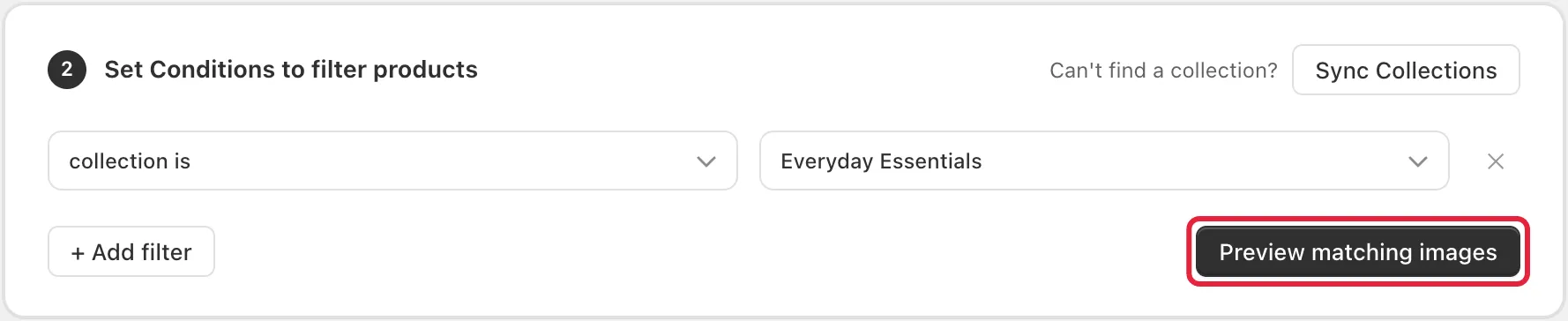
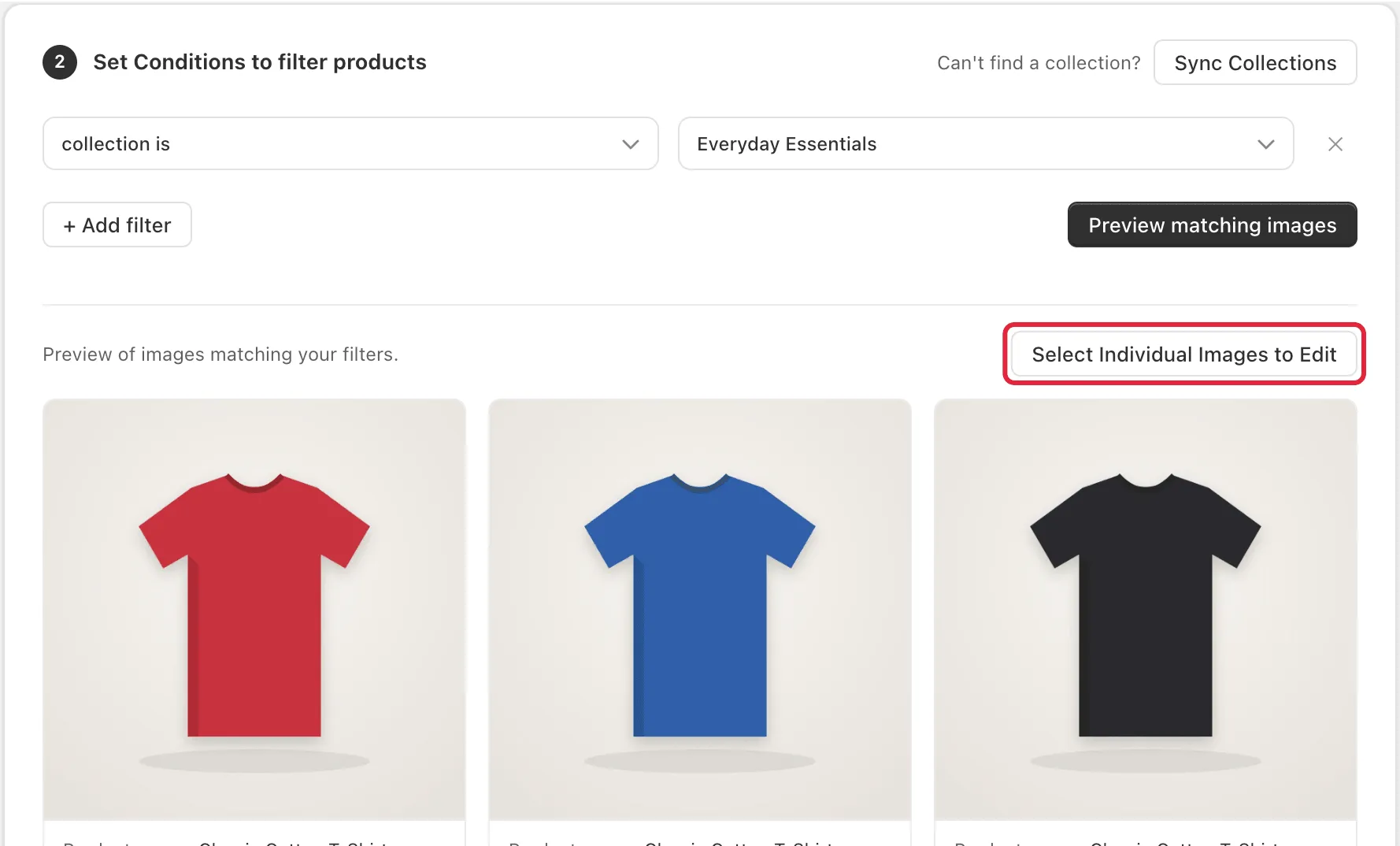
Step 2: A Select Individual Images to Edit button will appear after previewing your matched images. Please click this button in order to toggle our selection mode.
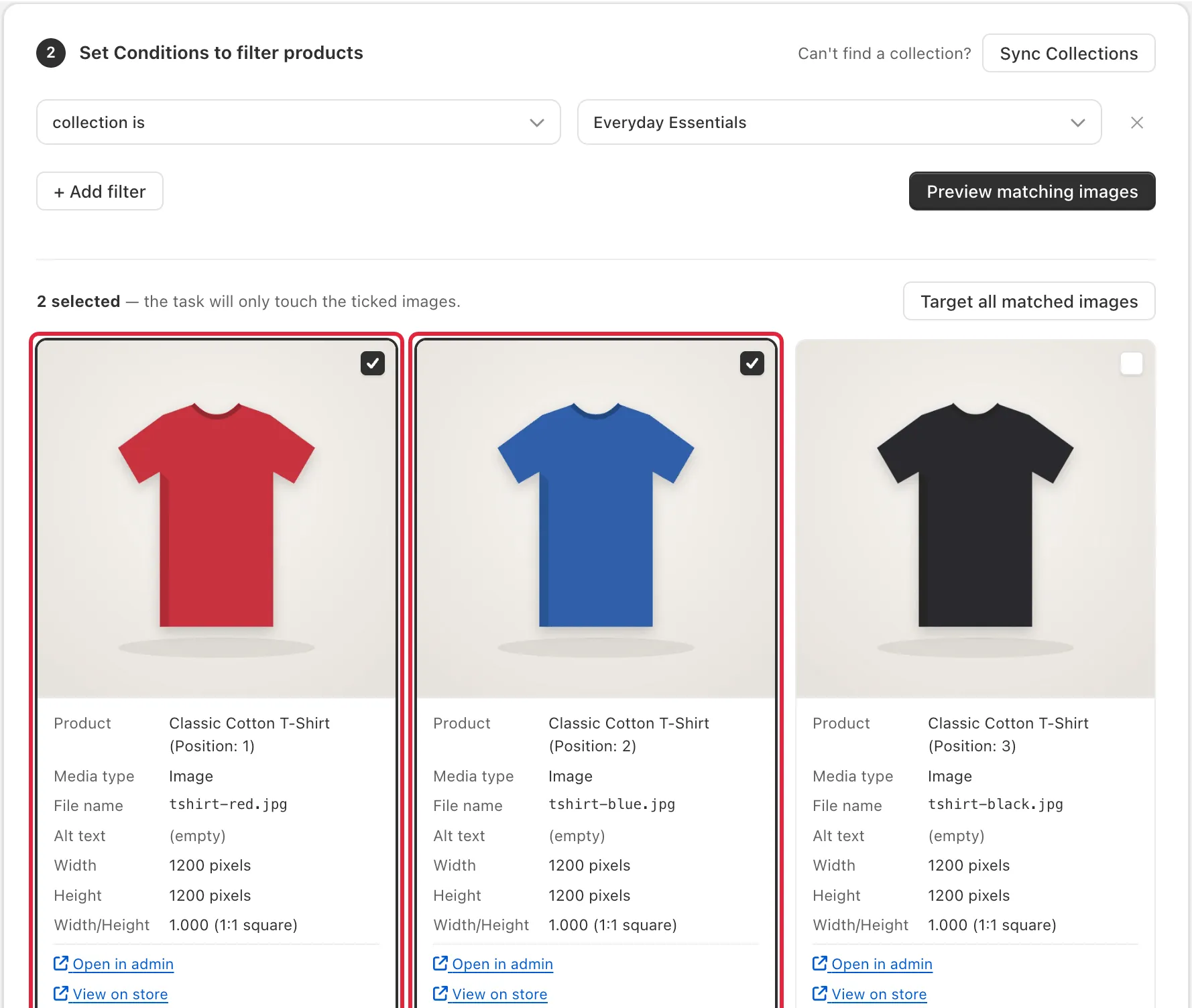
Step 3: Once selection mode is toggled on, you will see a checkbox on each image in the preview. Tick the images you want to edit.
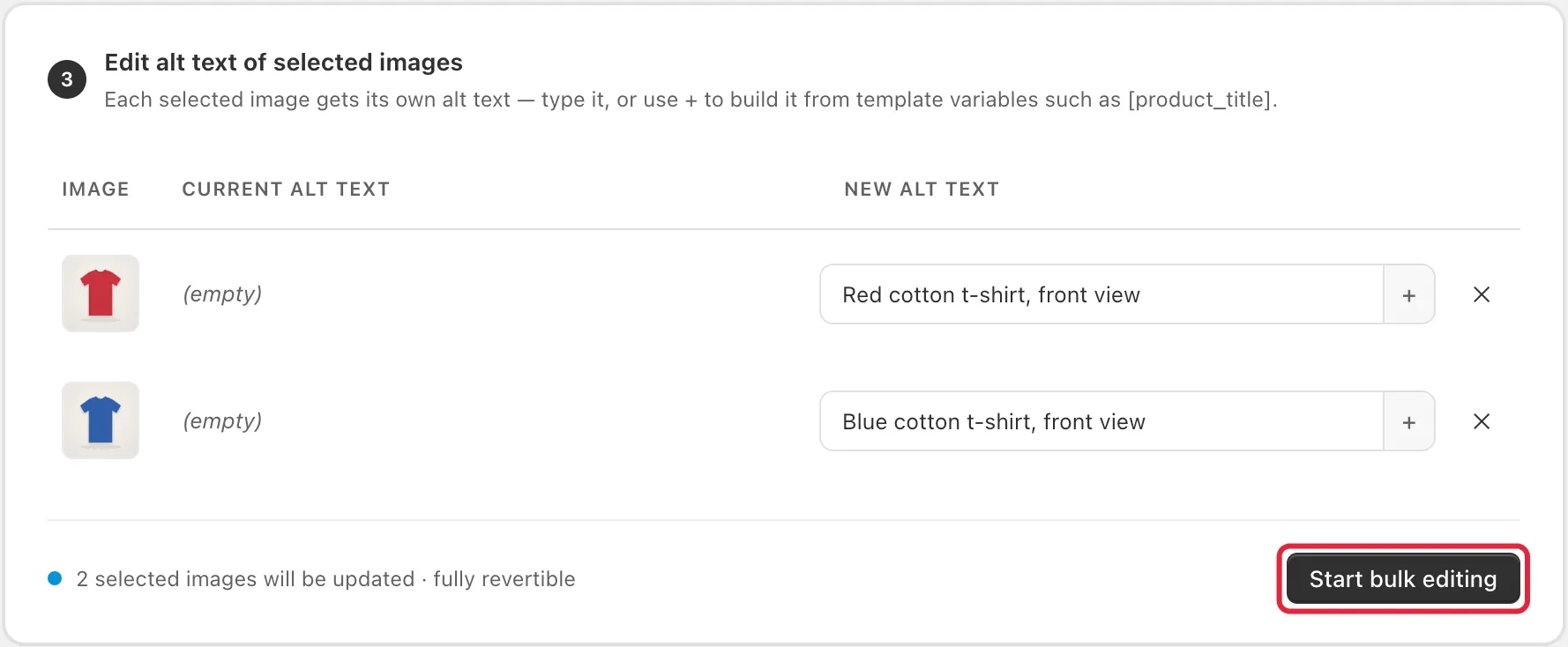
Step 4: Once you have selected your images, you will see them in the Edit alt text of selected images section below, with the current alt text next to a box for the new alt text. You can type it, or use + to build it from template variables. To remove individual images from the selection, click the ✕ next to the image you do not want edited.
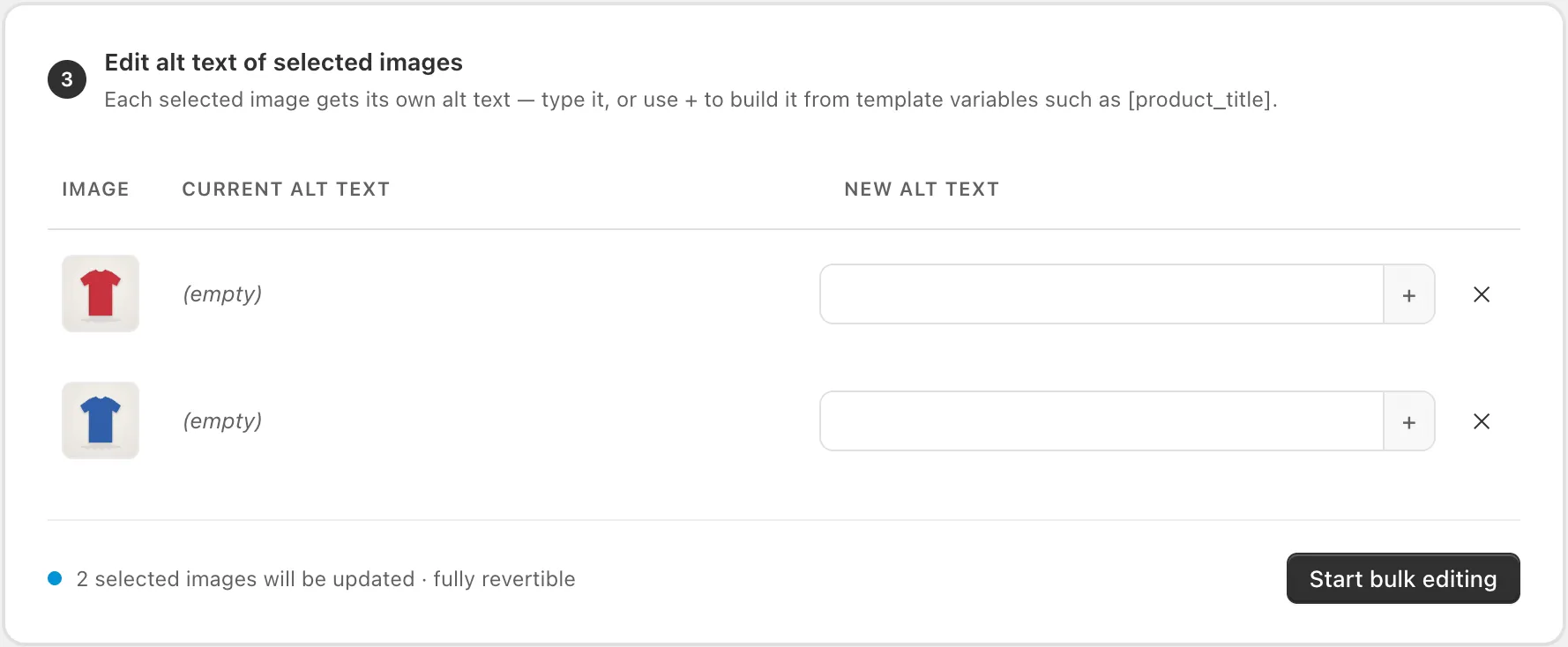
Step 5: Once you have made the necessary changes, please click the “Start bulk editing” button to begin the task. Once the task finishes, the new alt text will appear on your images.
**
**
Please note that the maximum number of image alt text that can be edited using the individual selection feature is 20.