Image Edit
How do I filter/select only some of my product images?
Bulk Image Edit offers a variety of different methods for filtering which products will be targeted by your Bulk Edit.
Product filter
Product Filtering allows you to select products based on:
- Collection
- Product title is
- Product title contains
- Product title does not contain
- Product type is
- Product vendor is
- Alt text of at least one product image
- Product tagged with
- Product not tagged with
- Product created within
- Product updated within
- Product visibility on online store
- Product status is
- Number of product images (more than, fewer than, is equal to)
- All products
You should be able to see this on Step 2
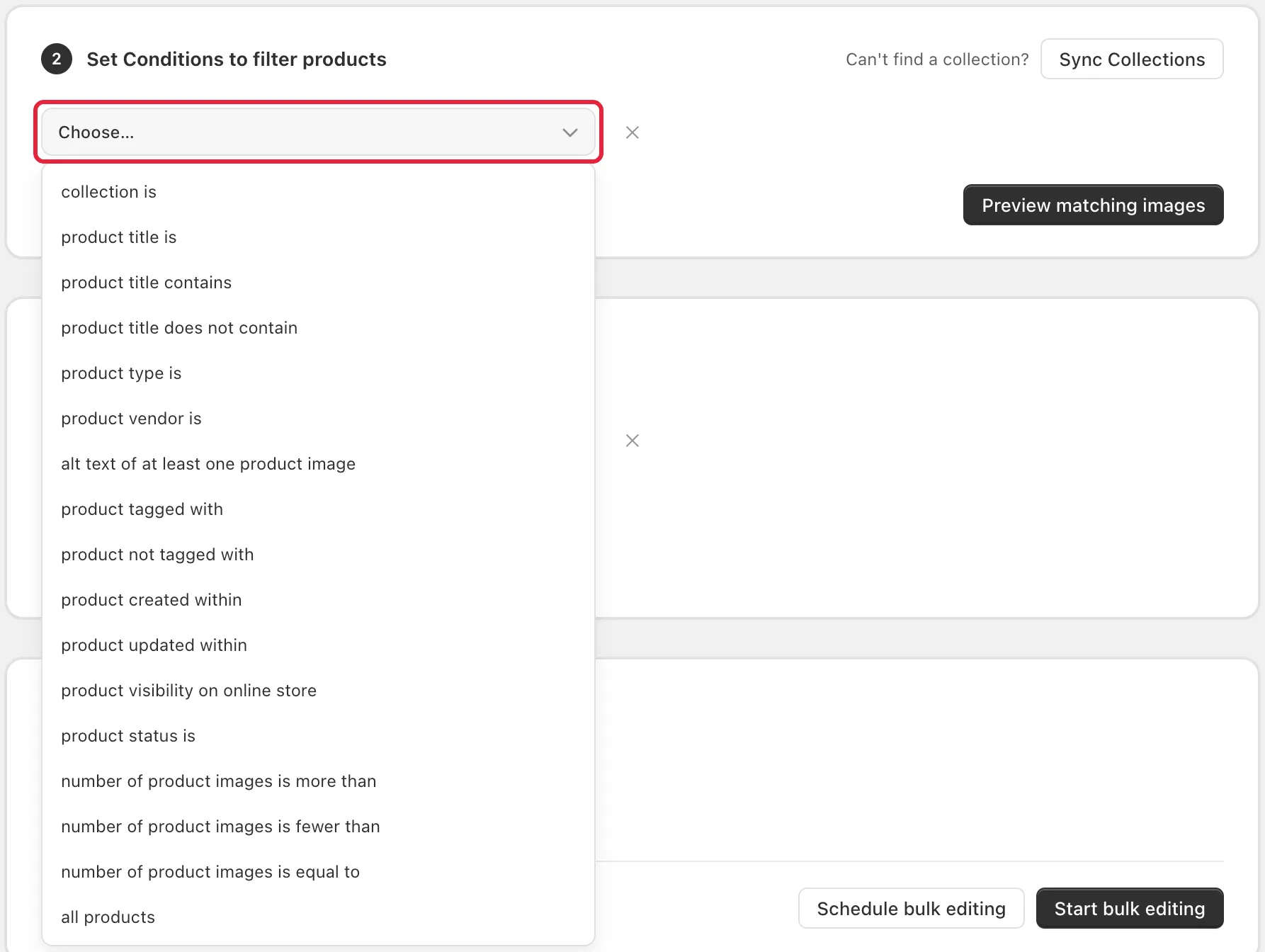
Image Filter
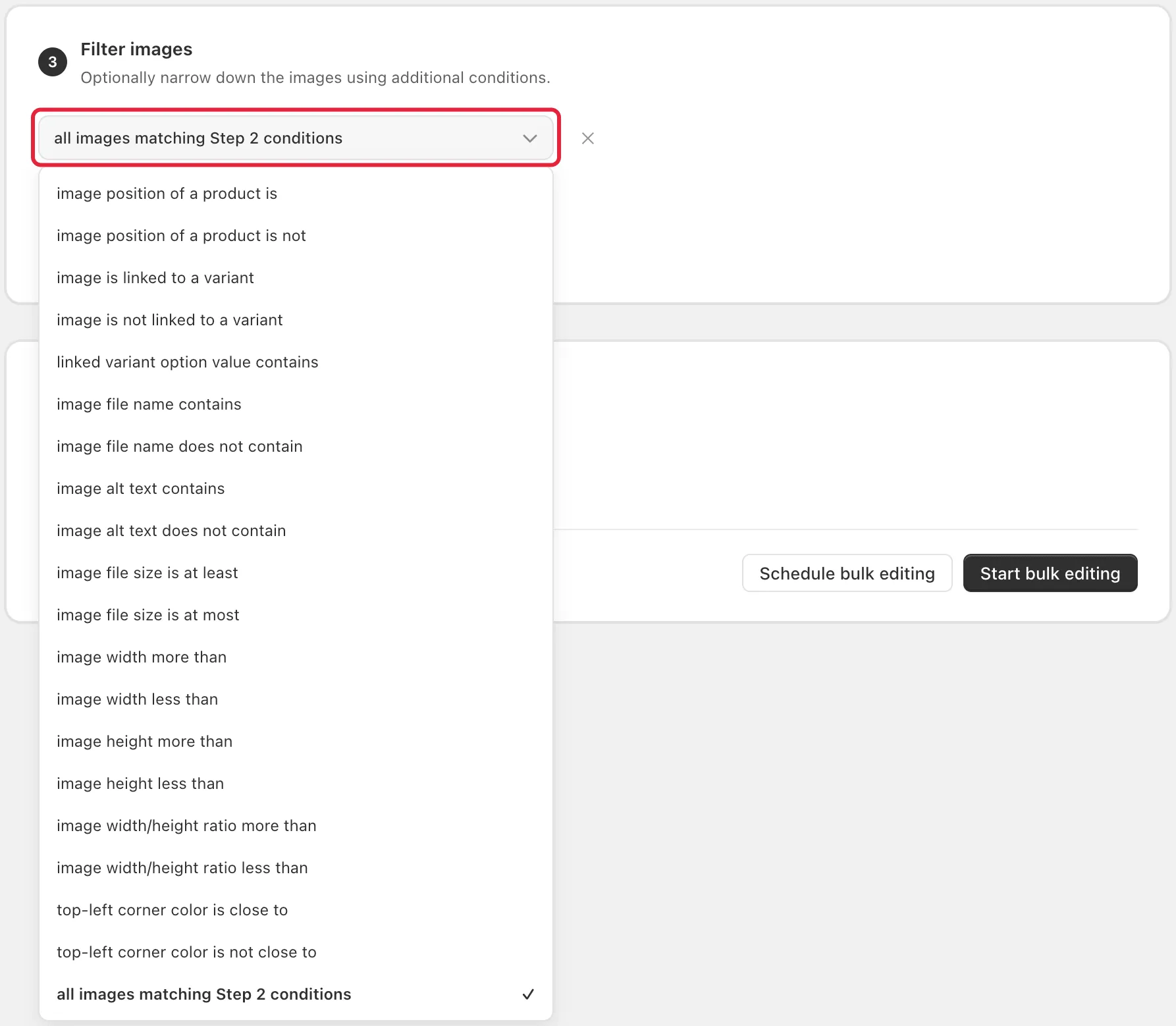
Image Filtering allows you to select images based on:
- Image position of a product is / is not
- Image is linked / not linked to a variant
- Linked variant option value contains
- Image file name contains
- Image file name does not contain
- Image alt text contains
- Image alt text does not contain
- Image file size is at least
- Image file size is at most
- Image width more than
- Image width less than
- Image height more than
- Image height less than
- Image width/height ratio more than
- Image width/height ratio less than
- Top-left corner color is close to
- Top-left corner color is not close to
- All images matching Step 2 conditions
You should be able to see it on Step 3 (optional)
If you need any help please do not hesitate to contact us at help@hextom.com
Was this article helpful?
Your feedback helps us improve our docs.
Thanks for the feedback!