
Image Edit
How to use Rotate Feature?
The Bulk Image Edit app includes a task feature for rotating images. Follow these steps to use this feature:
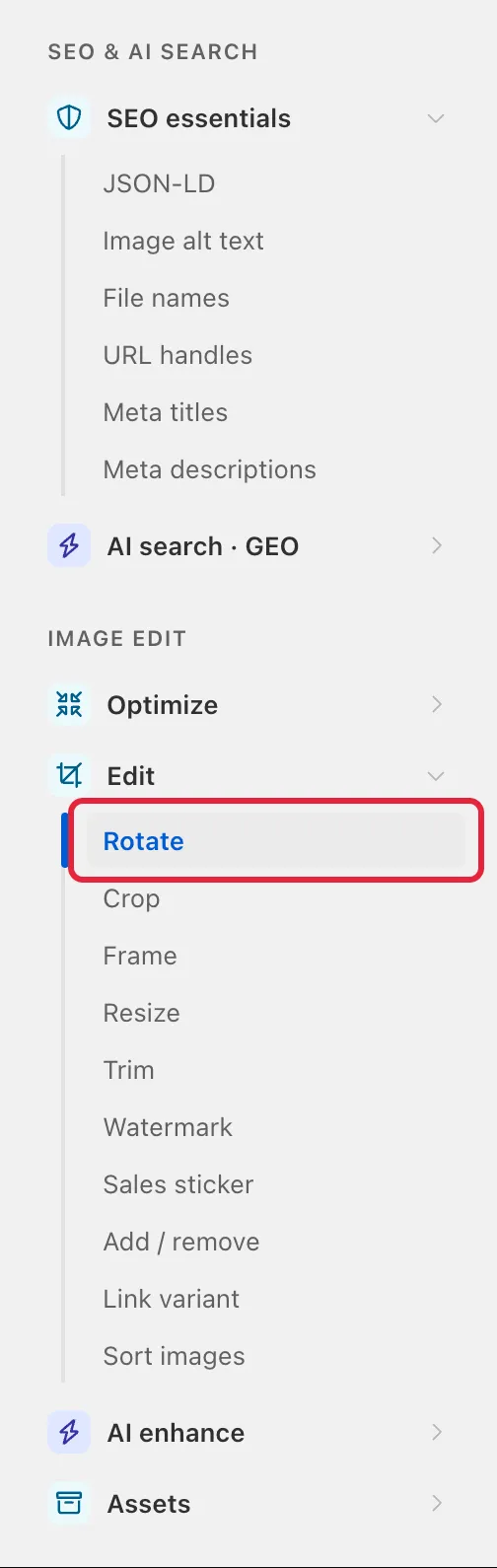
- You can open Rotate from the app’s tool menu (click Edit under the app in the Shopify sidebar, then Edit → Rotate):
- After opening the task function, select an Image Type.

- After selecting an image type, a condition filter will appear. Use this filter to match and select the images you want to edit.
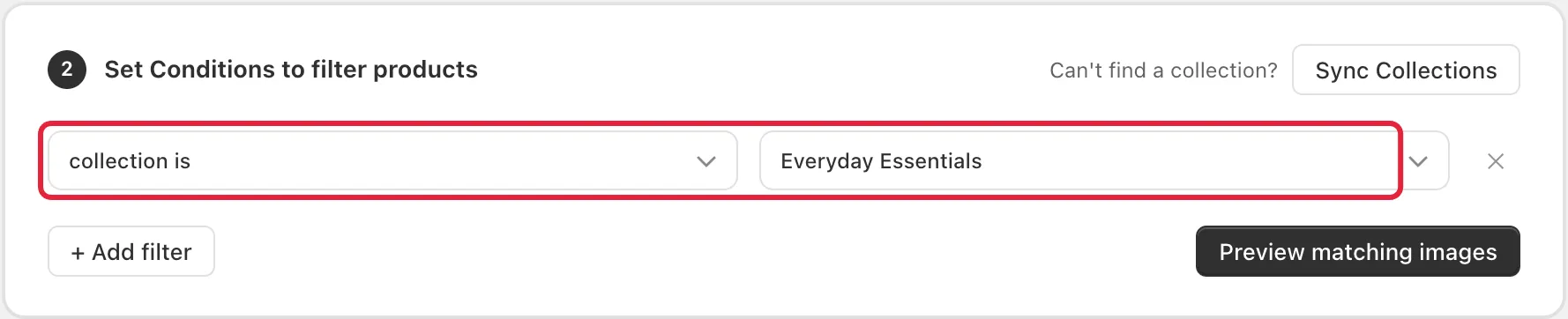
Tip
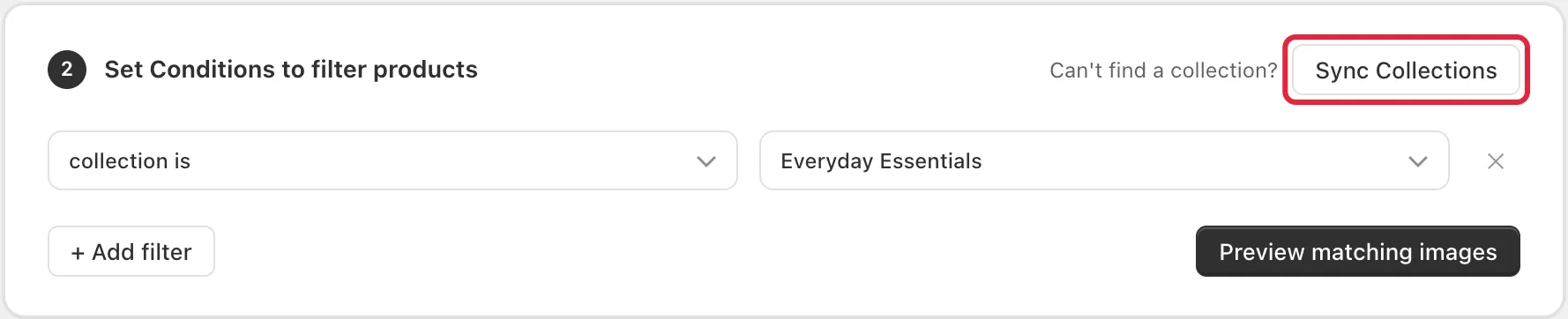
If the image is not displayed and was recently added, you can show it by syncing collections in the task. To do this, click Sync Collections, located in Step 2:
- After selecting the image you want to edit, you can choose between two available rotation tasks:
- Rotate - rotates the image counter-clockwise by 90°, 180° or 270°
- Mirror - mirrors the image left-to-right
Rotating Images Counterclockwise
Images that are on this task are rotated counterclockwise, using 3 available options: 90°, 180°, 270°.
For reference, below is an example of a 90° rotation applied to a wine bottle image.

Mirror-Rotating an Image (Left-to-Right)
Mirror-rotating an image can be also called “flipping” an image, and what the app does is to mirror-rotate this from left-to-right.
For reference, below is an example of a right-facing wine bottle. After applying the mirror-rotation, it will now appear as a left-facing wine bottle.

We also have a video tutorial below:
If you have any questions or concerns, please contact us at help@hextom.com