
Getting Started
Getting Started With Bulk Image Edit
Welcome to Bulk Image Edit!
Bulk Image Edit & SEO/GEO lets you quickly edit, optimize, upload, download, and back up your product images, collection images, blog post images, and content images. You can also improve your store’s SEO by editing image alt text, file names, URL handles, meta titles, and meta descriptions in bulk.
Note:
You can try the app for free on the Starter plan, which includes 50 monthly credits. Tools marked Free on the dashboard (for example, Download media, Backup images, and non-AI alt text) don’t use any credits.
Your dashboard at a glance
When you open the app, the dashboard shows where your store stands and gives you quick access to every tool.
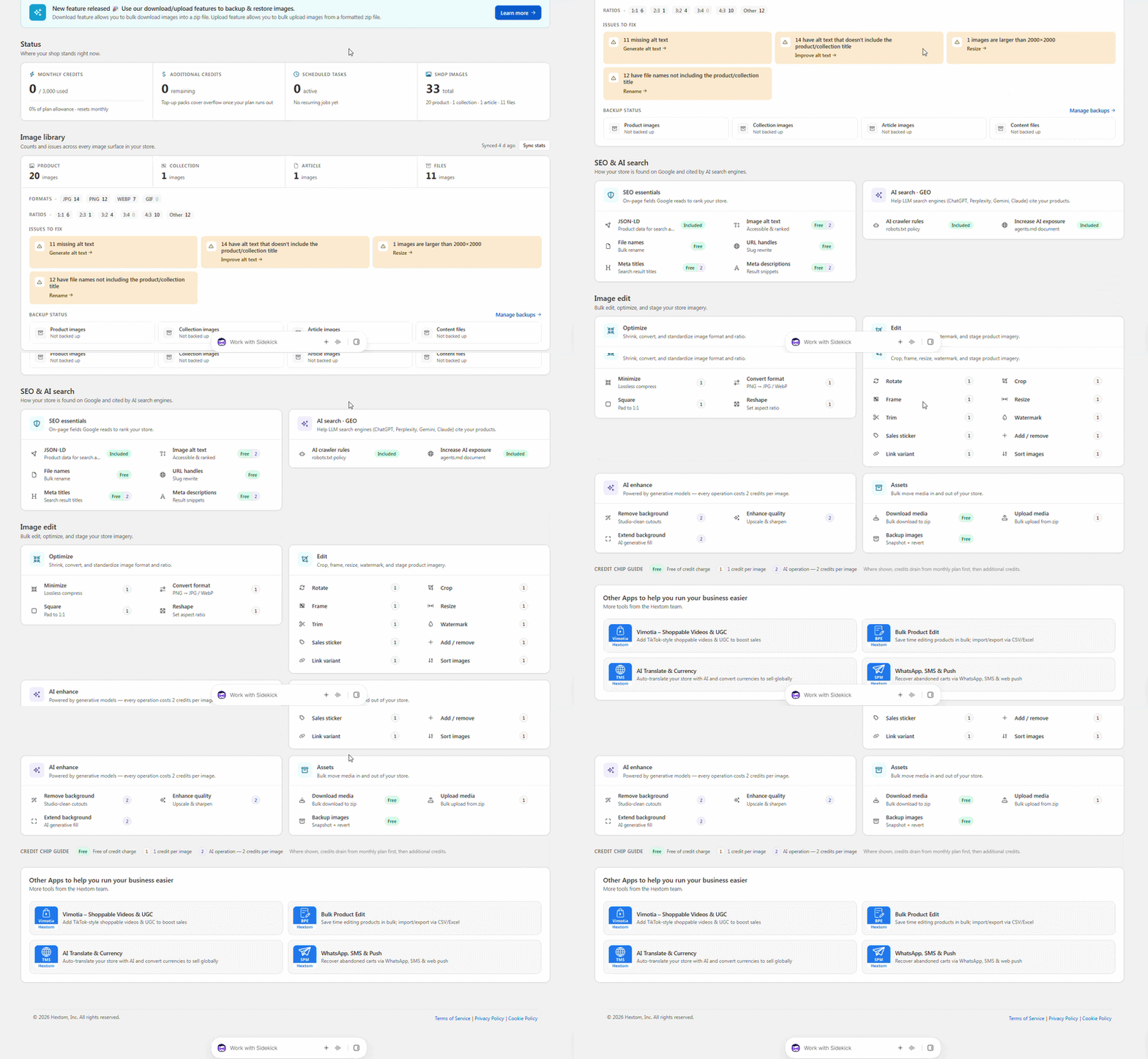
- Status: your Monthly credits used this month, any Additional credits you’ve purchased, your active Scheduled tasks, and the total number of Shop images.
- Image library: how many product, collection, article, and file images your store has, broken down by format and aspect ratio. Click Sync stats to refresh the counts.
- Issues to fix: suggestions the app found in your images, such as missing alt text or images larger than 2000×2000. Click the link on a card to open the right tool.
- Backup status: whether each image type has been backed up. Click Manage backups to set one up.
- SEO & AI search and Image edit: all the app’s tools, grouped by what they do. You can also open them from the left sidebar.
What do the credit chips mean?
Each tool on the dashboard shows how many credits it uses:
- Free: doesn’t use any credits.
- 1: uses 1 credit per image.
- 2: AI tools that use 2 credits per image.
Credits are taken from your monthly plan allowance first, then from your additional credits.
Running your first bulk edit
In the example below, we’re using the Square tool to make all product images a 1:1 ratio. Every editing tool follows the same steps.
1. Select the image type and set conditions to filter products
Open a tool from the dashboard or the sidebar. Then:
- Under Select which type of images to edit, choose Product images, Collection images, Blog post images, or Content images.
- Under Set Conditions to filter products, add conditions to narrow down which products the app should edit. For example, collection is a specific collection. Click + Add filter to add more conditions, or leave the conditions empty to edit every product.
- Click Preview matching images to check which images will be edited. If you only want to edit a few specific images, click Select Individual Images to Edit (see How do I use the individual selection feature?).
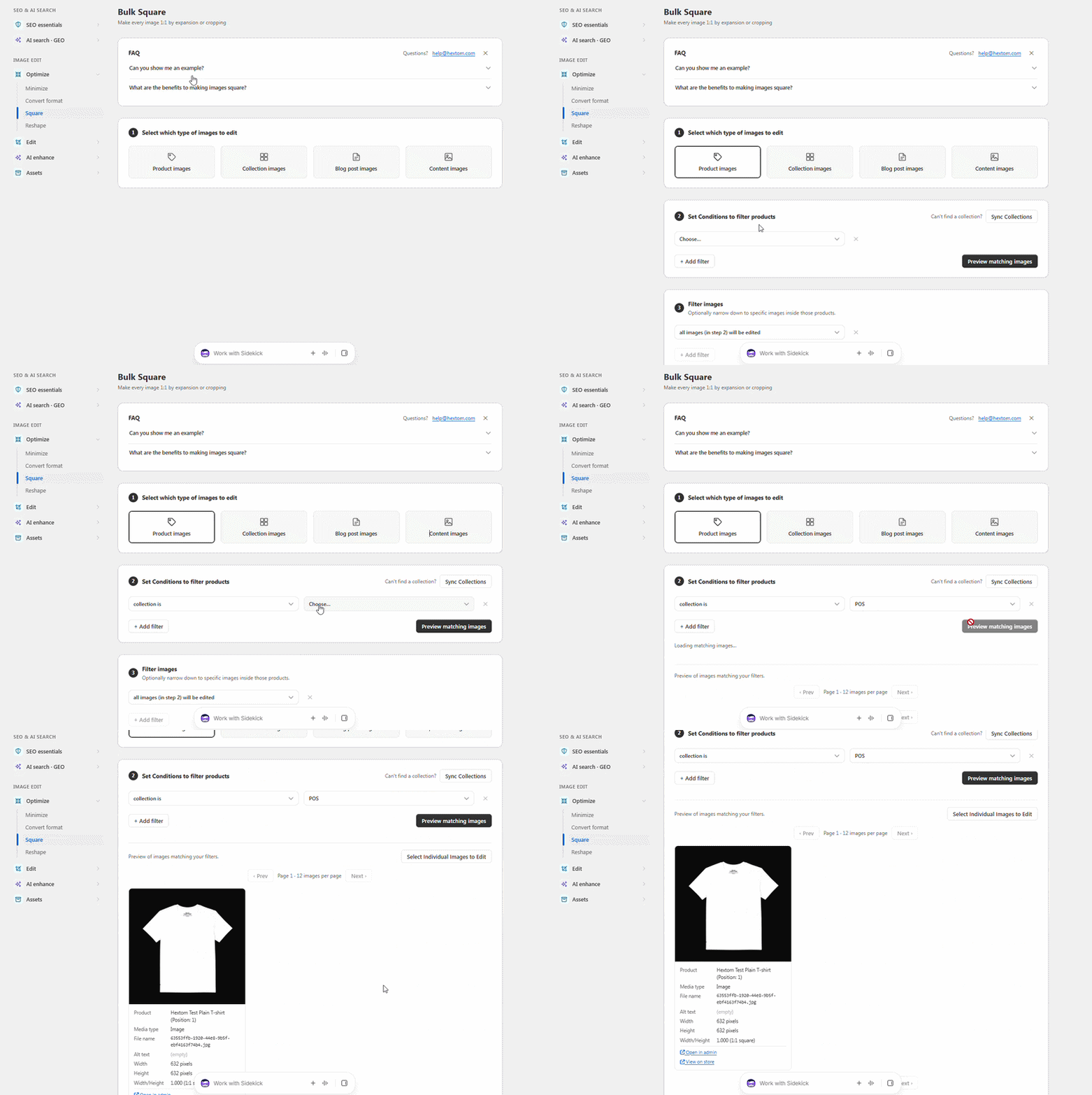
Note: On the Free plan, some image types aren’t available, depending on the tool. Product images can always be edited. Image types that need a paid plan are greyed out, with an Upgrade and Unlock link below them.
2. Optional: Filter the images
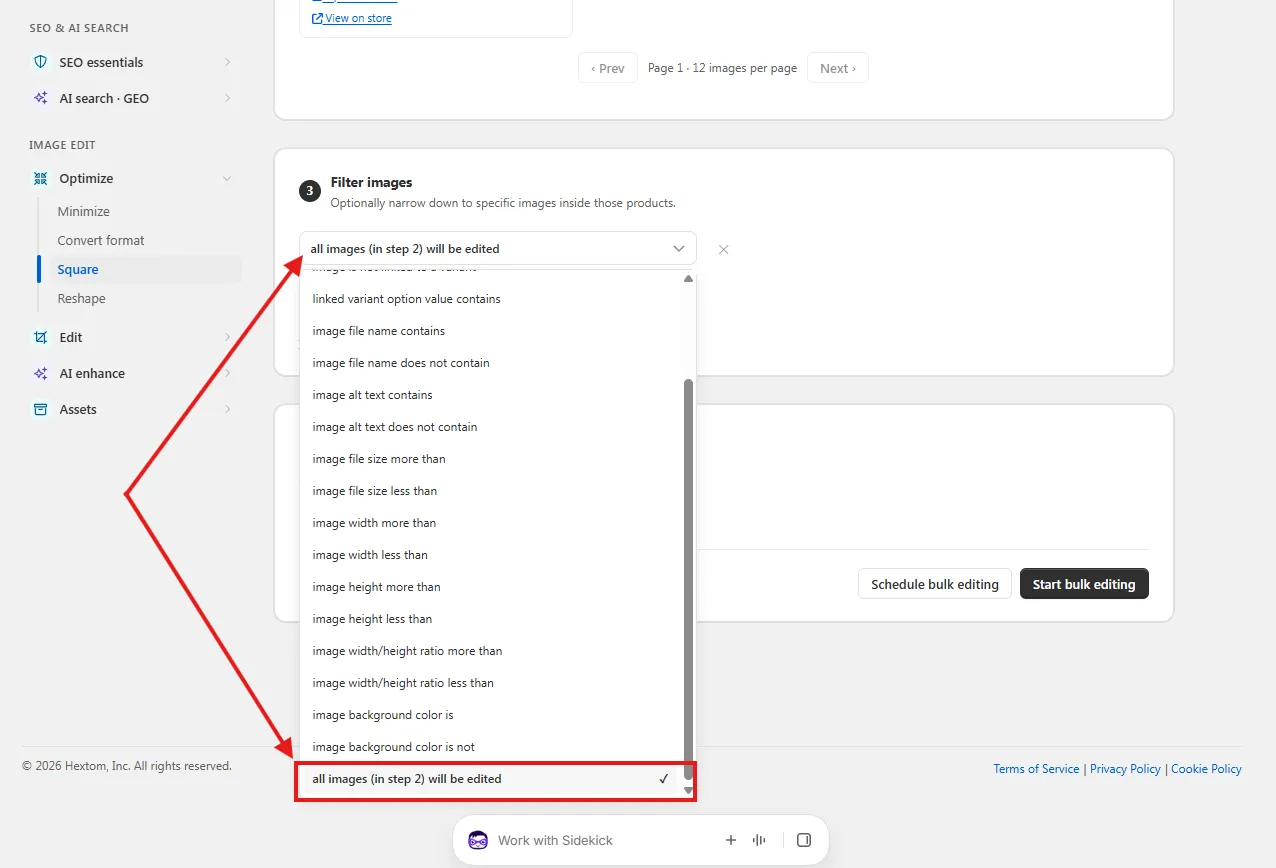
If you only want to edit some of the images inside those products, add an image filter. For example, you can filter by file name, alt text, file size, width, height, aspect ratio, or background color. To edit all of the images from step 1, you can skip this step.
3. Choose how to edit the images
Pick how you want the tool to edit your images. The options depend on the tool you chose. The Good to know box explains what will happen, and the credit cost is shown on the right.
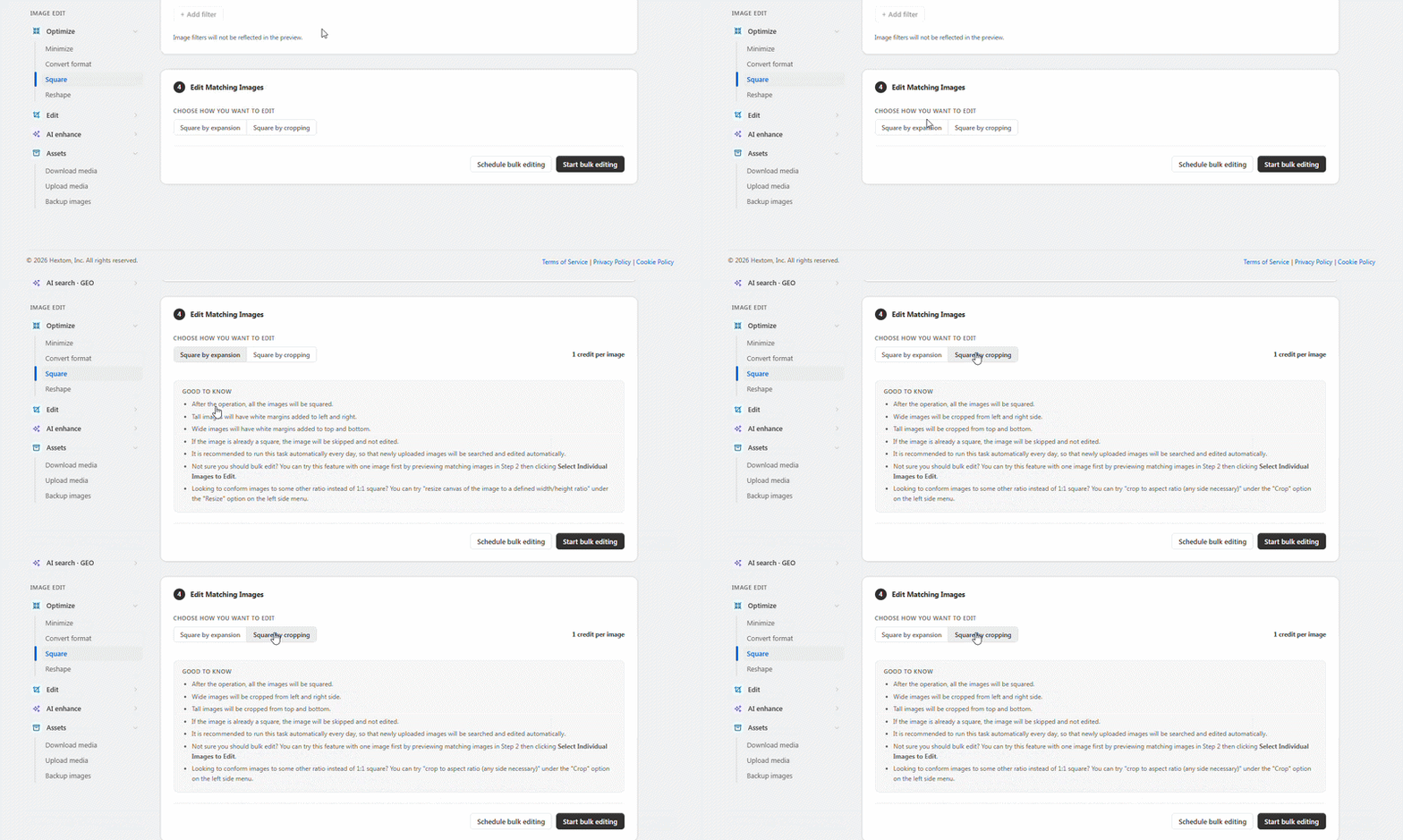
4. Click “Start bulk editing”
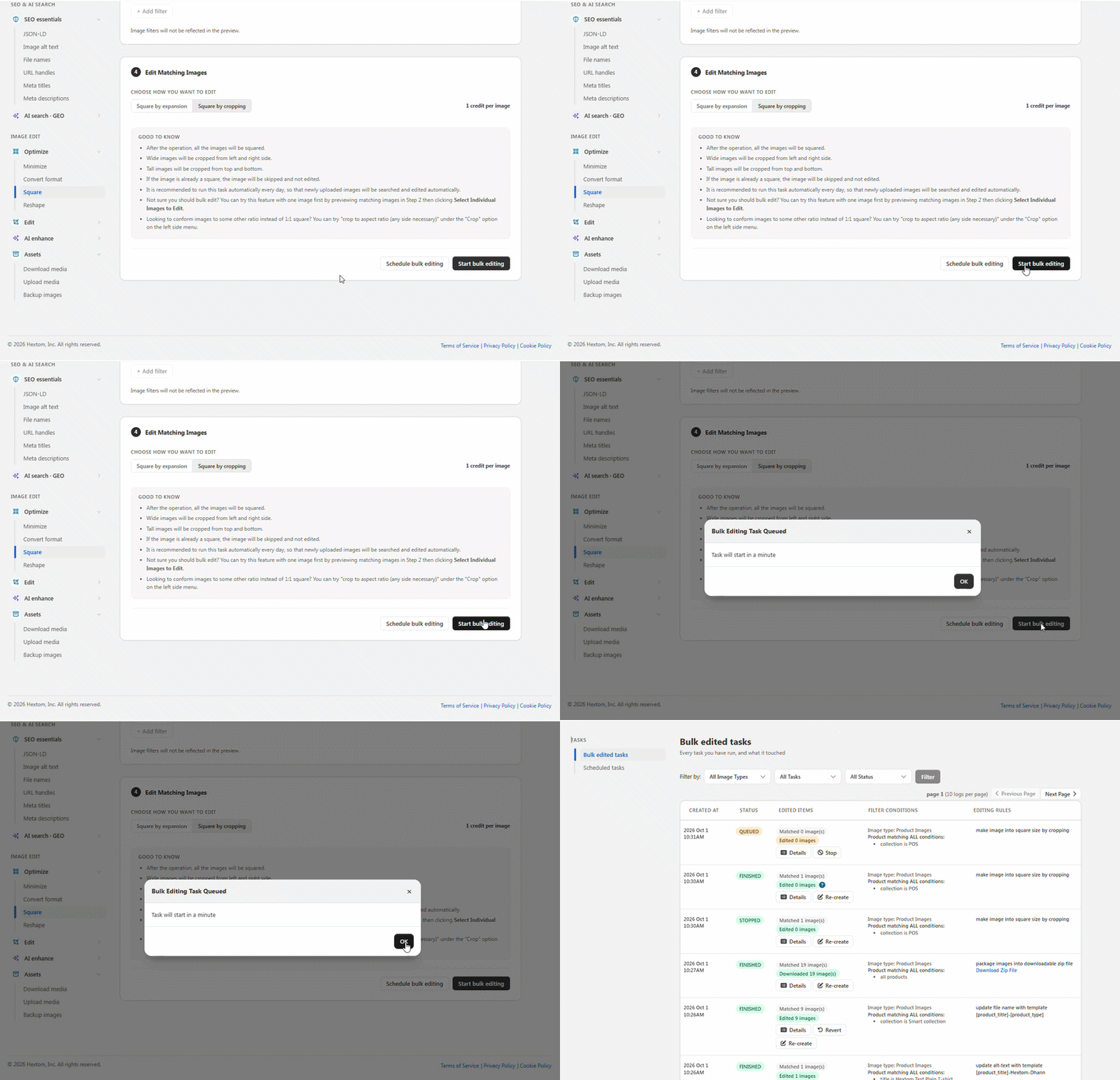
Your task will be queued on our servers and will run within a few minutes. After it’s finished, you’ll see the changes in your Shopify Admin.
Not happy with the result? You can revert the task to restore your original images. See How do I cancel/revert a task?
Tip: Click Schedule bulk editing instead if you want the task to run at a specific time or repeat daily, weekly, or monthly. This is useful for automatically editing newly uploaded images. The number of active scheduled tasks depends on your plan: 1 on Starter, 5 on Basic, 20 on Professional, 100 on Advanced, and unlimited on Enterprise.
Next steps
- Feature Overview - Which tool should I use?: what each image editing tool does.
- SEO Feature Overview: the tools in the SEO & AI search section.
- How do I cancel/revert a task?: undo a task you’ve already run.
- Plans and Pricing: monthly credits, additional credits, and what each plan includes.
If you have any concerns or feedback about the app, please let us know at help@hextom.com.