
Image Edit
How to Use the Link to Variant Feature?
The Link to Variant feature in the Bulk Image Edit app lets you connect specific product images to specific variants. This is especially useful because if a variant doesn’t have an image linked to it, a blank image may appear in the cart. This can confuse customers and may negatively impact conversions.
In the example below, the product has several images, but the variants don’t have any linked images:


Step 1: Access the Link to Variant feature
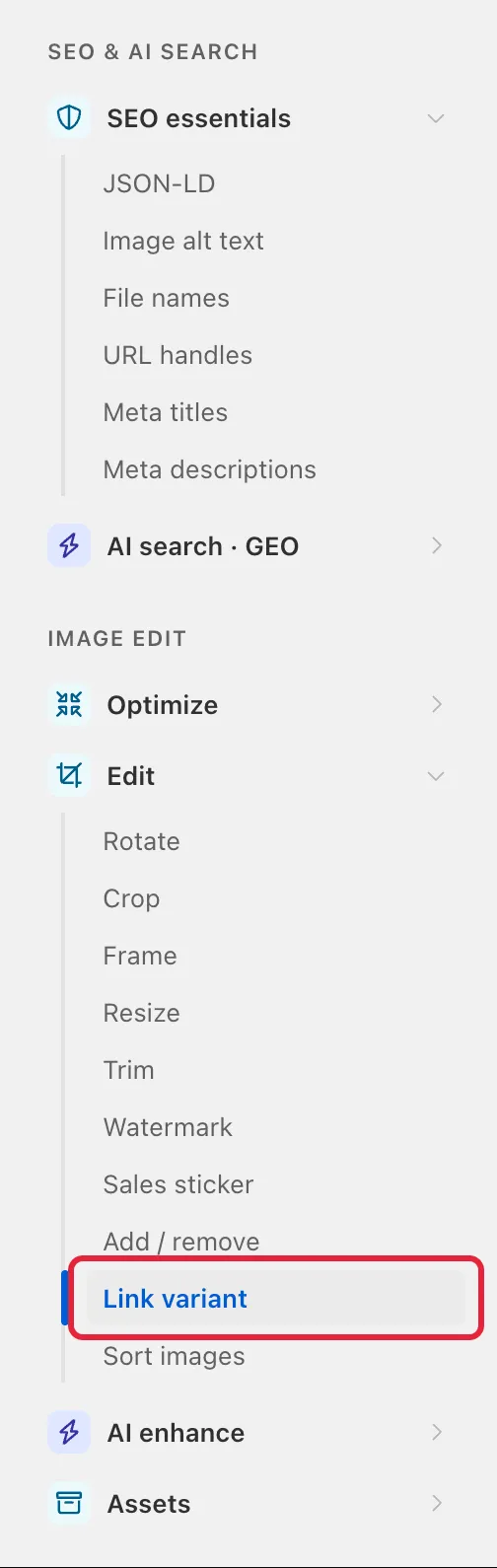
You can open Link variant from the app’s tool menu (click Edit under the app in the Shopify sidebar, then Edit → Link variant):
Step 2: Set up your product conditions
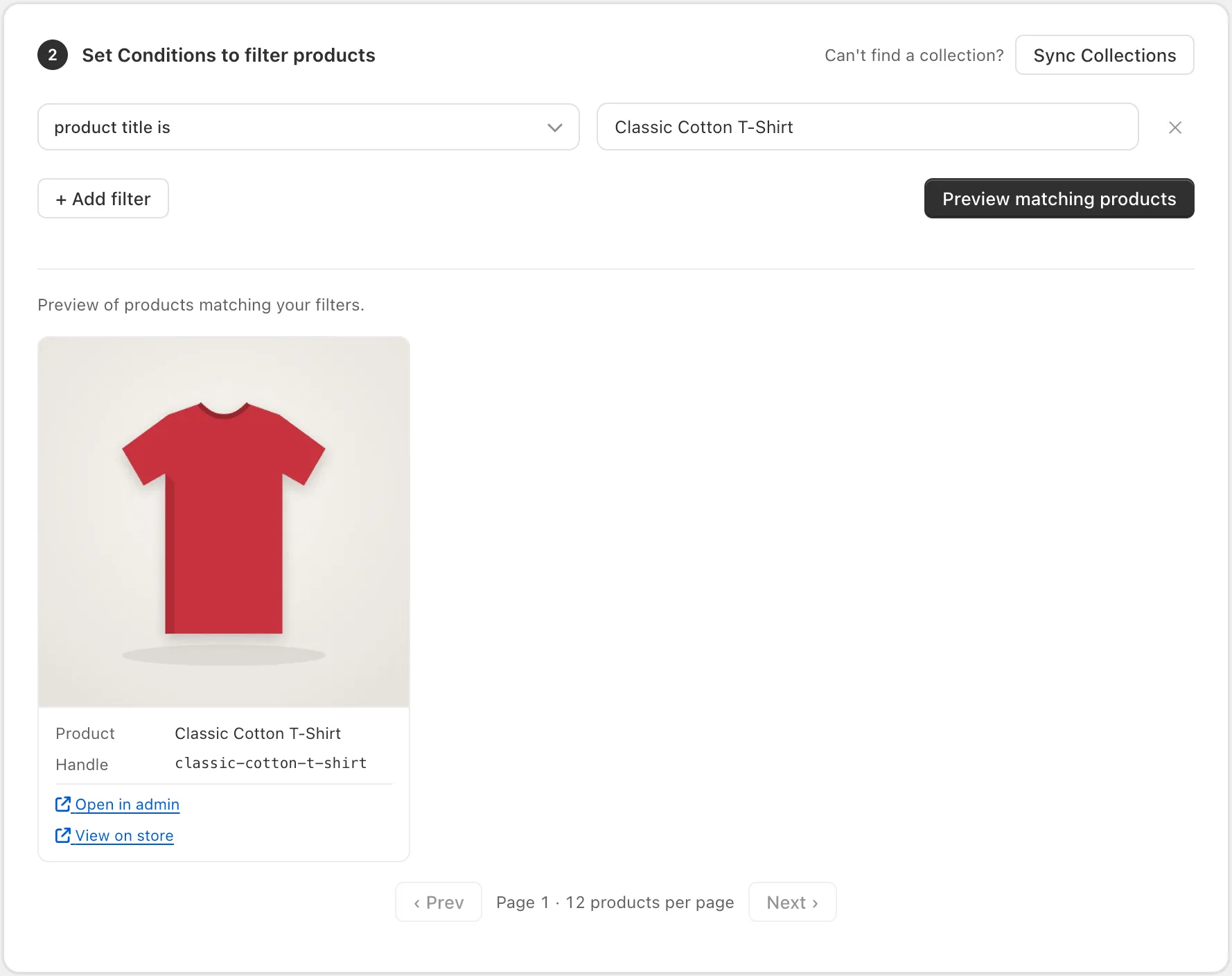
Configure the conditions to filter which products you want to include in the bulk edit. Once set, preview the matching products to make sure everything looks correct:
Step 3: Configure the image and variant matching rules
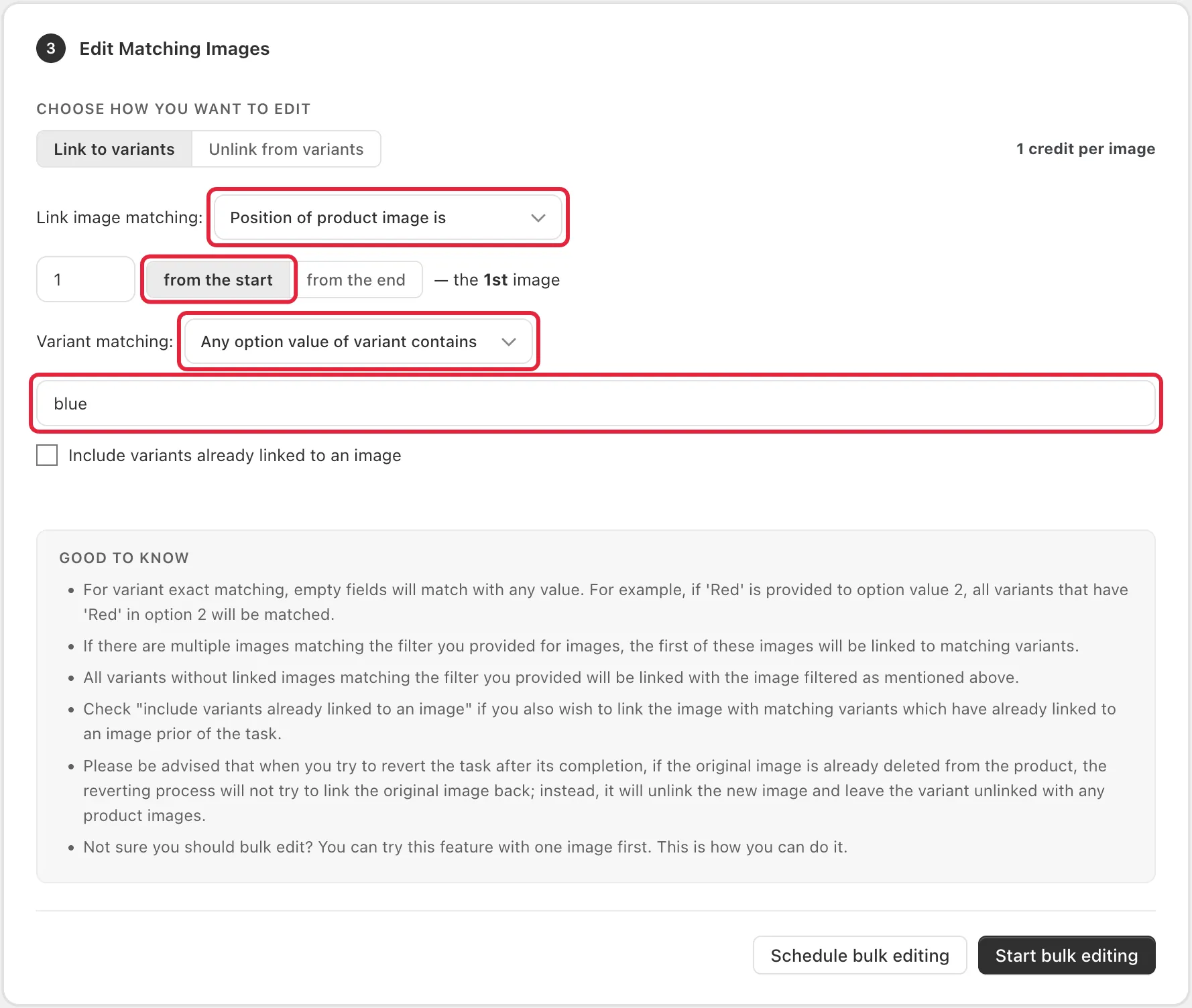
In this example, we want to link the blue shirt image to all variants that use the Blue option.
Set up the task as follows:
- Link image matching: Position of product image is = 1 from the start (this is the blue shirt image)
- Variant Matching: Any option value of variant contains = blue
If you’re wondering how the image positions are arranged, you can refer to the screenshot below.

Step 4: Start the bulk edit
Once everything looks good, click the Start bulk editing button.
Result
After the task is finished, all variants with the blue option value will be linked to the 1st image (the blue shirt).
As shown below, only the Blue variant was edited:

If you have any further questions, please feel free to contact us at help@hextom.com