
FAQs
How do I cancel/revert a task?
You can easily revert any task in our Bulk Image Edit app to it’s pre-edit state, as long as it’s still backed up - 30 days or more depending on the plan. The maximum is 360 days for the Enterprise plan. For more information, please visit the Plans and Pricing page inside the app.
Reverting a task simply re-uploads the before images of that task. If you edit an image with multiple tasks and want to undo them all, simply revert the first task.
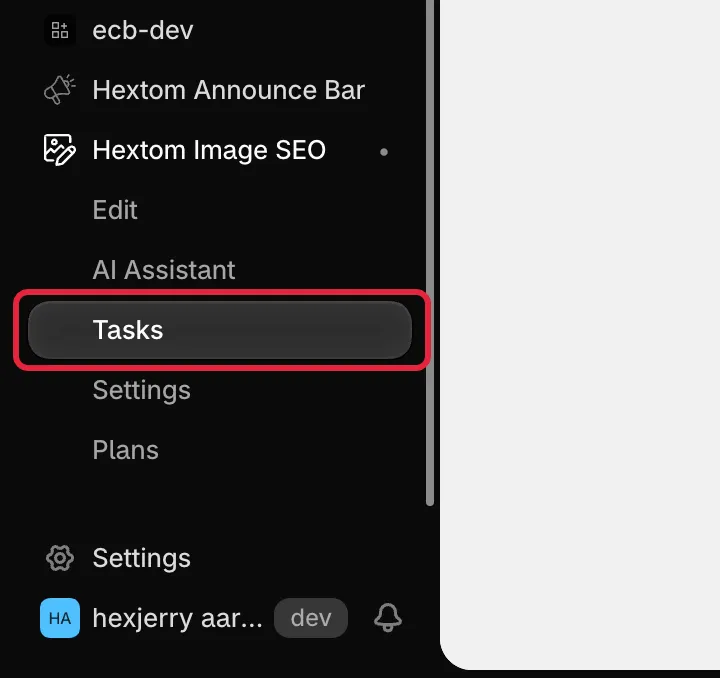
To revert, simply open Tasks under the app in the Shopify sidebar (the Bulk edited tasks page) and click on the Revert button associated with that task.

How do I revert a single image?
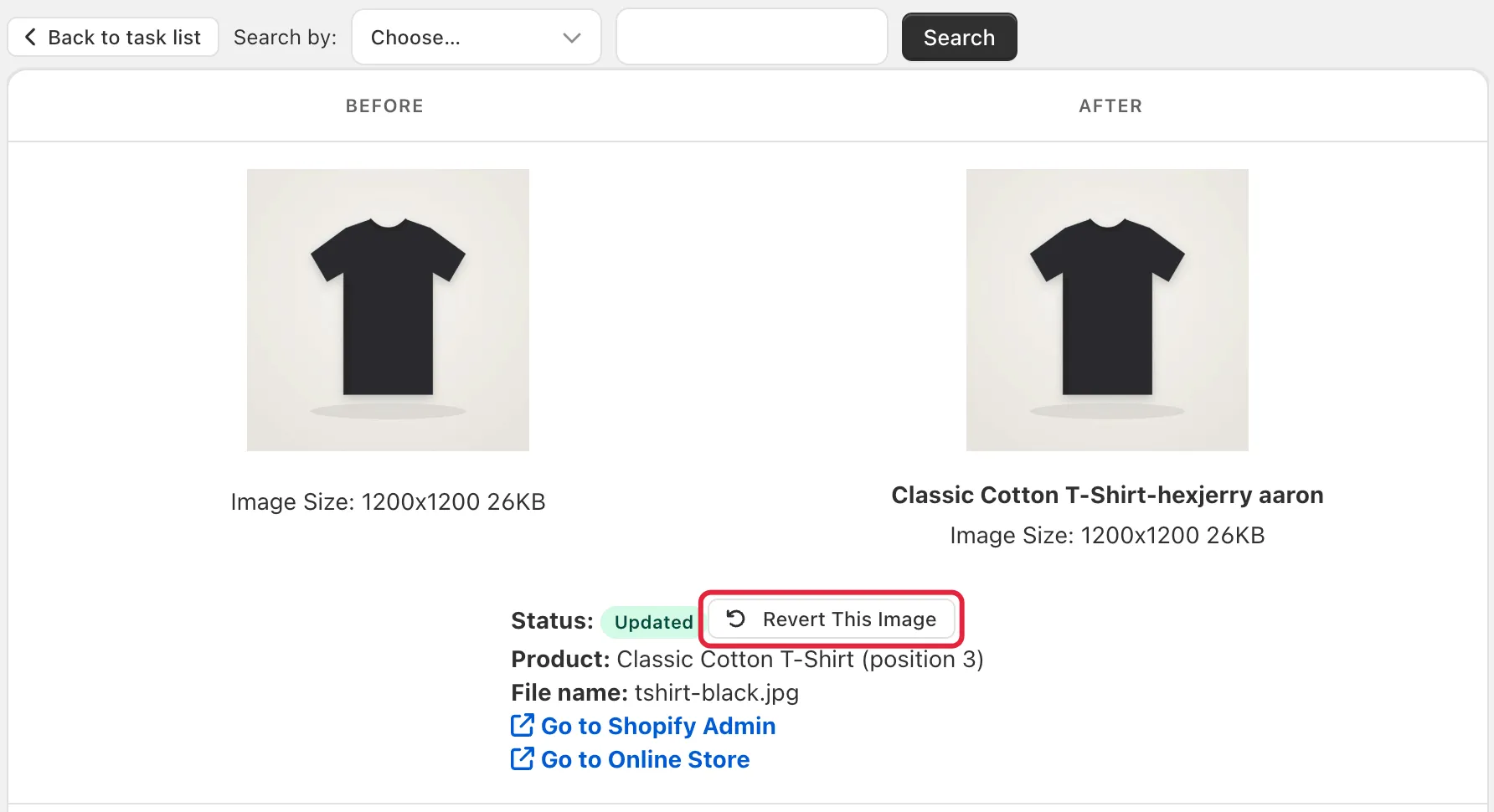
If you are looking to revert a single specific image in a task, you can do so by going to the Details page under a specific task.

From there, you can revert a specific change by clicking on the Revert This Image button under the image you want reverted.
How do I cancel/stop a task?
You can cancel a task in our Bulk Image Edit app on the Tasks page. You can find a Stop button next to a queued or running task; clicking Stop (then Stop task) stops it from processing more images.

Please note that any images that have already been processed will remain that way. If this task was created in error, you can simply revert it to ensure that all images return to their original state.