
Image Edit
How to use Reshape feature?
The Reshape function allows you to reshape your images into a “square” (1x1 ratio), “rectangle” (2x3 or 3x4 ratio), or “landscape” (3:2 or 4:3 ratio). You can do this by following the steps below:
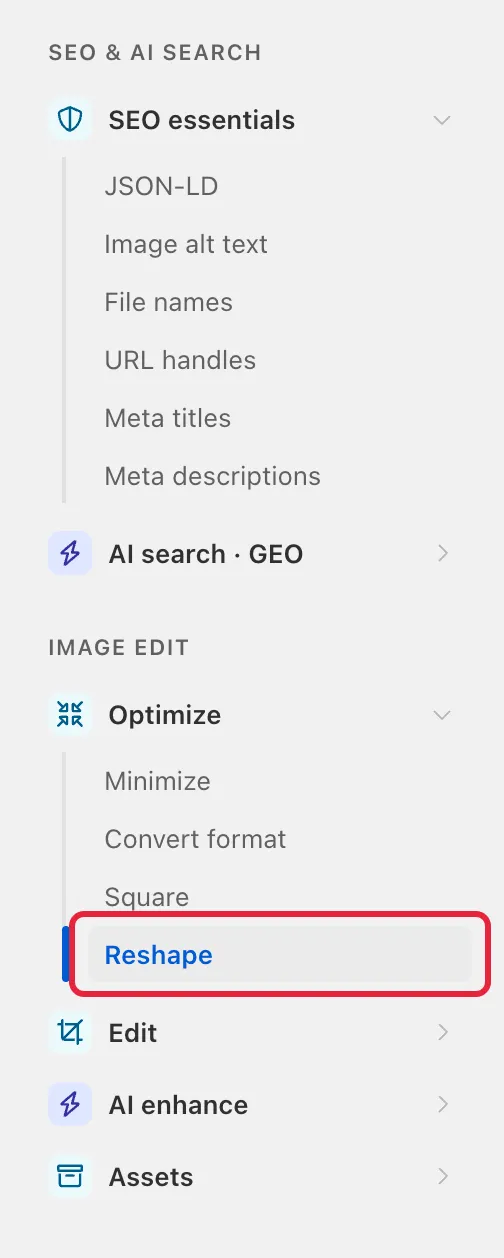
- To get started, you can find the Reshape tool in the app’s tool menu (click Edit under the app in the Shopify sidebar, then Optimize → Reshape):
- On the Reshape page, you need to select first which type of images you want to edit. You can choose from “Product images” and “Content images”. For our example below, we will edit “Product images”.

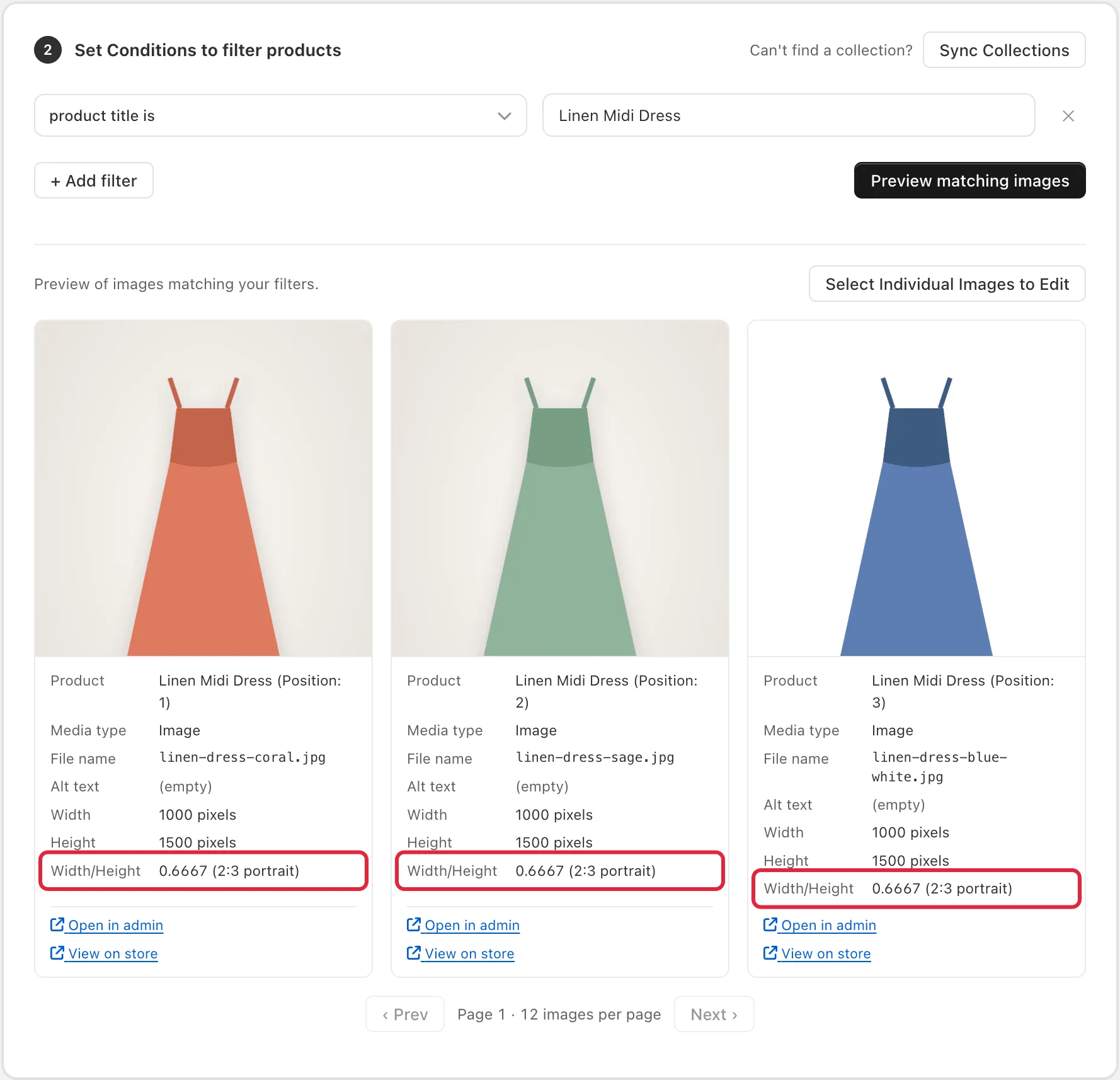
- On the second step, you need to set your filters to find the images you want to edit. We will search for the product whose title is “Linen Midi Dress” in this case. You may click the “Preview matching images” button to have a preview of the products that meet your criteria.
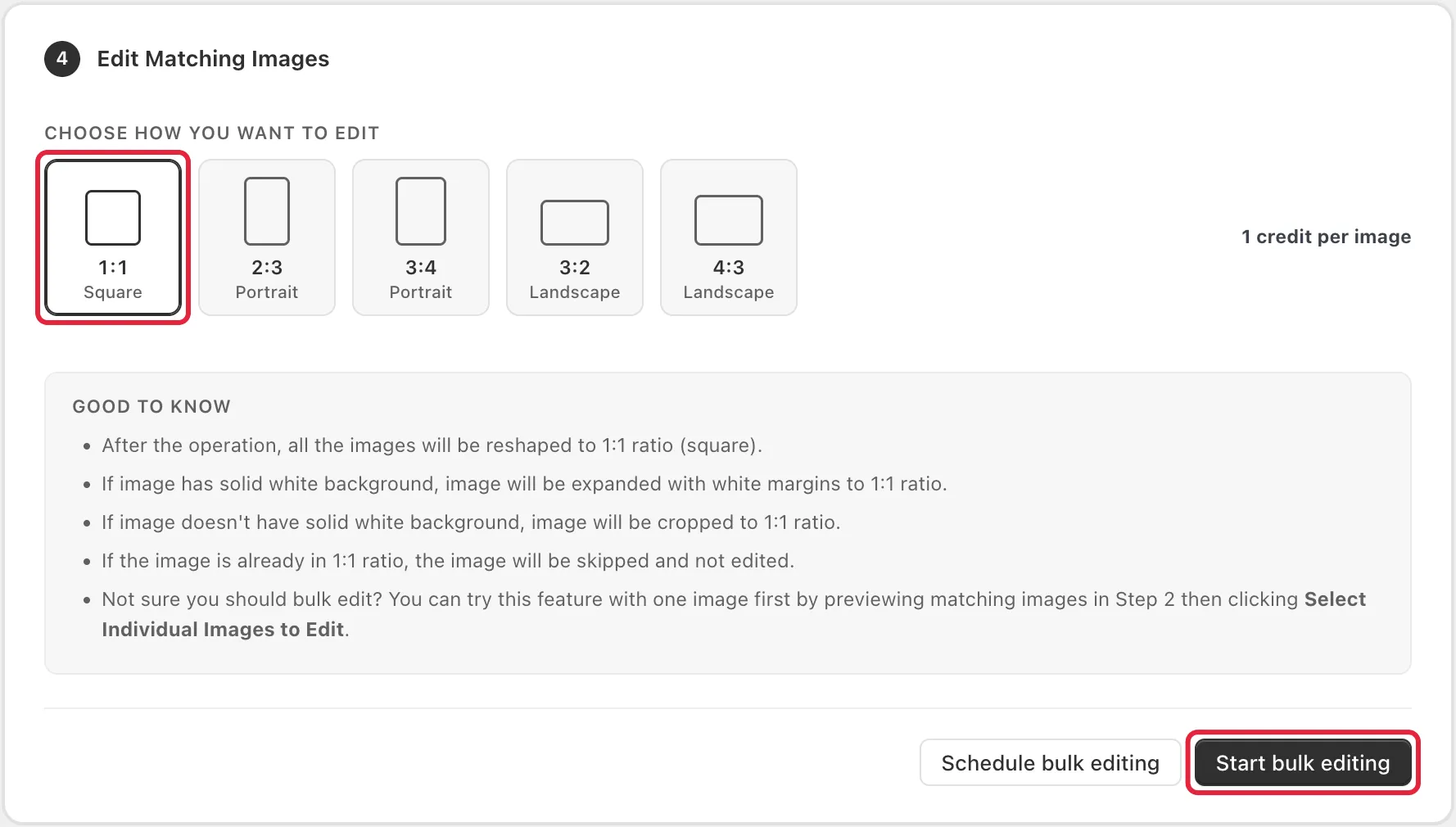
- Next, you need to select what type of edit you want for these images. You can choose 1:1 (square), 2:3 or 3:4 (portrait), and 3:2 or 4:3 (landscape). For our dress images, we will choose 1:1 Square in order to make them “square”.
Note: Our app will adjust product images differently depending on their background color:
- Images with a solid white background: These will be expanded by adding white margins to match the selected ratio.
- Images without a solid white background: These will be cropped to fit the selected ratio.
- Images already matching the selected ratio: These will be skipped, as no adjustments are needed.
- After that, you can review everything and click on Start bulk editing to begin the image reshaping edit, and wait for the task to finish.
Once the task is completely done, you can check the results on the Tasks page, and click the Details button of the task you ran.

When you navigate to the Details page, you’ll be able to view the result of the task:
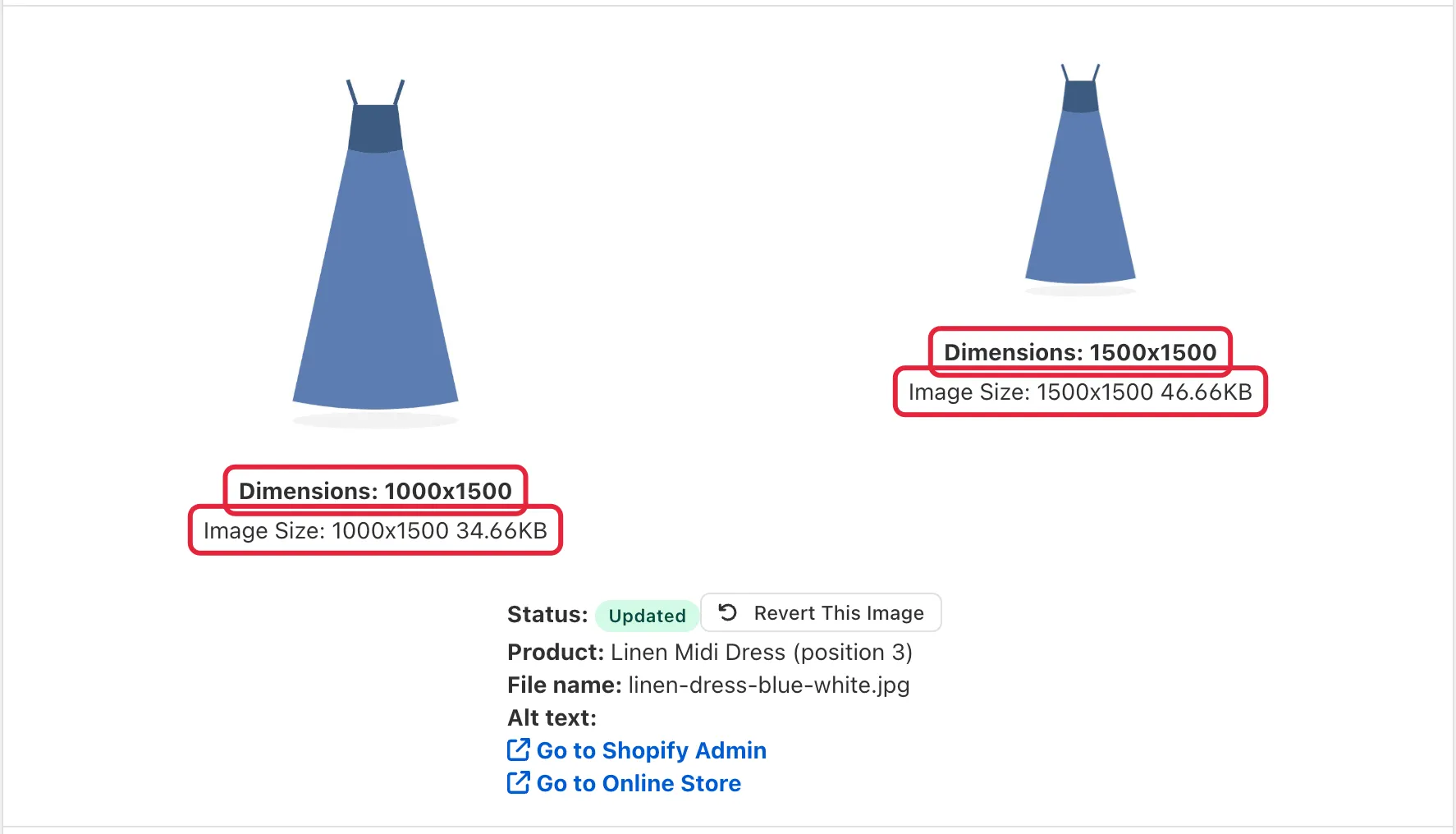
For the dresses from our example above, you can see that the blue dress is on a solid white background, so white margins were added to expand it from 1000x1500 to 1500x1500.
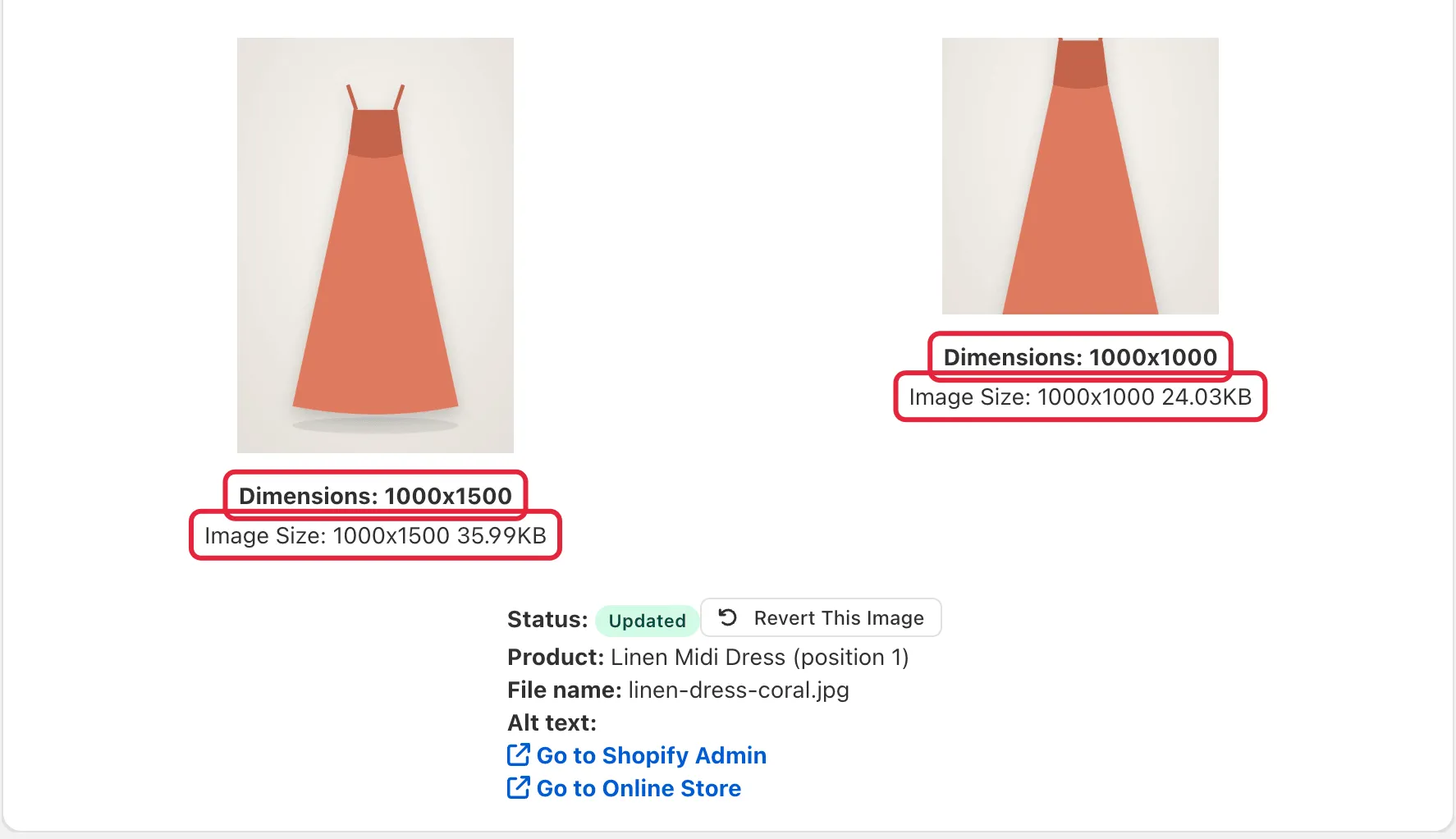
As for the coral dress, it’s not on a solid white background, so it was cropped from 1000x1500 to 1000x1000, making both dress pictures a “square” shape.
You can also check out a video tutorial on using our Reshape feature below:
Feel free to contact us at help@hextom.com if you have any questions or need further assistance.