
Image Translation
How to Translate Images the Scan Can't Find (Custom Images)
Some images on your store never show up in the Product, Collection, Blog cover, Media, or Theme images tabs. These are usually images added by other apps, page builders, or hosted outside Shopify, so our image scan cannot find them.
With the Custom images tab, you can add any of these images by pasting its URL, then translate it just like any other image.
Note: This feature is only available in the Pro plan and above.
When to use Custom images
Use this tab when the image you want to translate:
- was added by another app or a page builder,
- is hosted outside Shopify (an external image host or CDN), or
- does not appear in any other tab, even after running an image scan.
If the image is a product, collection, blog cover, media, or theme image, use its own tab instead. See our Image Localization Tutorial.
How to add a custom image
- Open your storefront, right-click the image you want to translate, and select Copy image address.
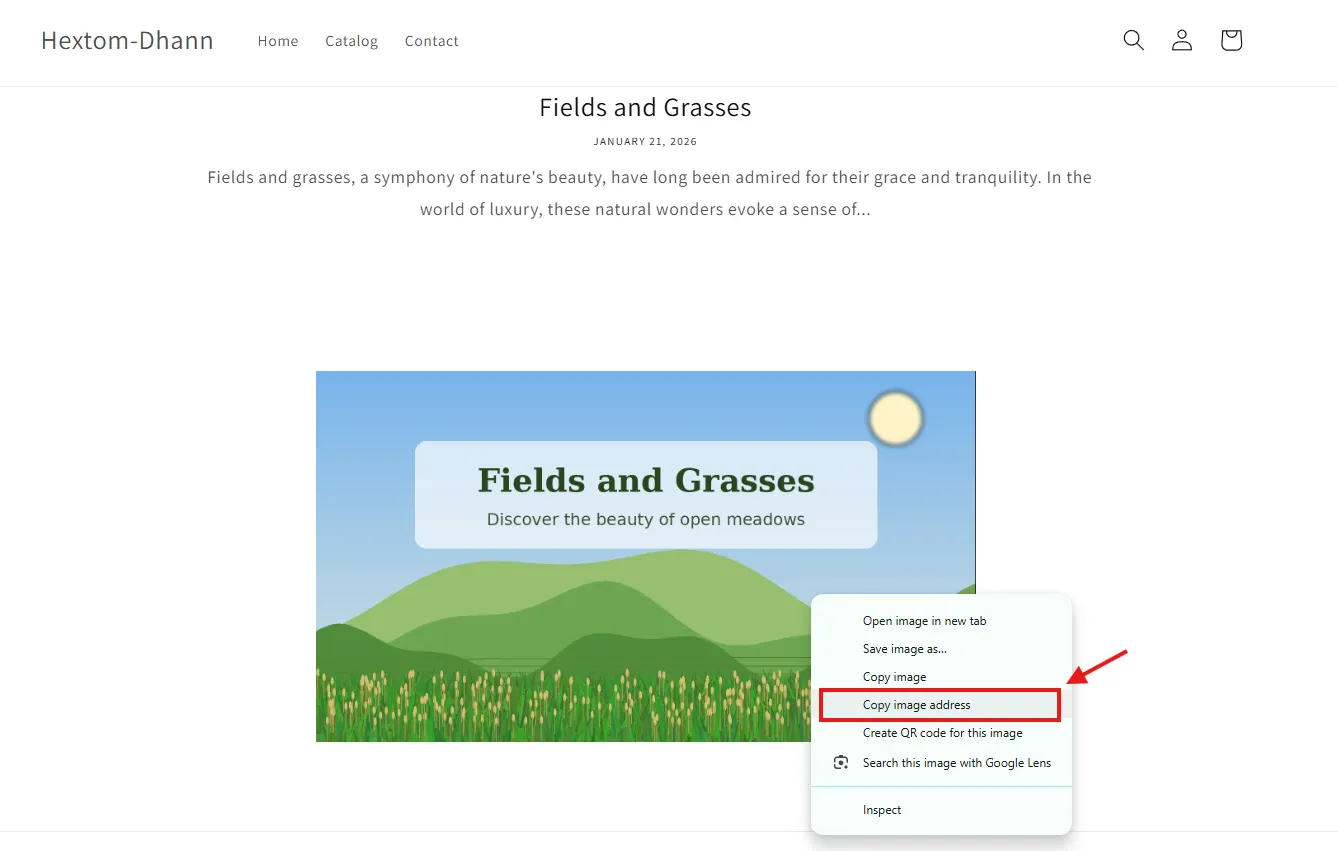
Tip: Don’t see Copy image address? Some images, like backgrounds or slider images from page builders, don’t show this option. You can find the image address with your browser’s Inspect tool instead. See How to find a translated image for a walkthrough.
- In the app sidebar, go to Translation and select Translate images, then open the Custom images tab.
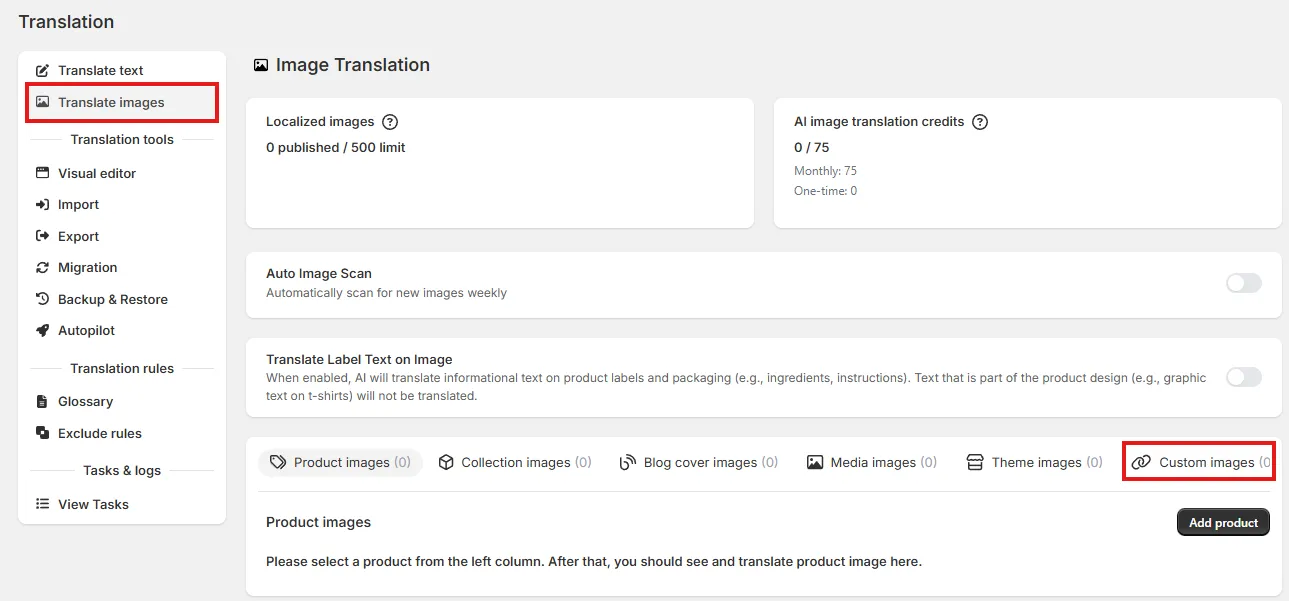
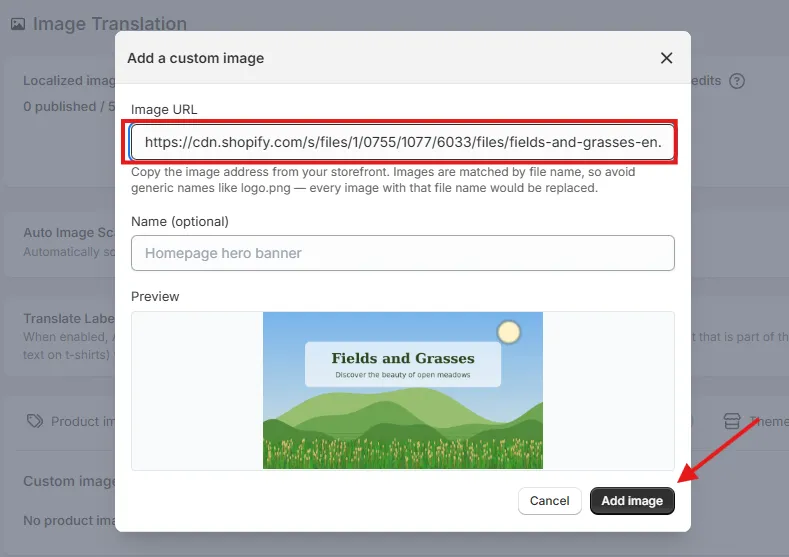
- Click Add image URL. In the Add a custom image popup, paste the address into Image URL. You can also add a Name (for example, “Homepage hero banner”) so the image is easier to find later.
- Check the Preview to make sure it’s the right image, then click Add image.
How to translate a custom image
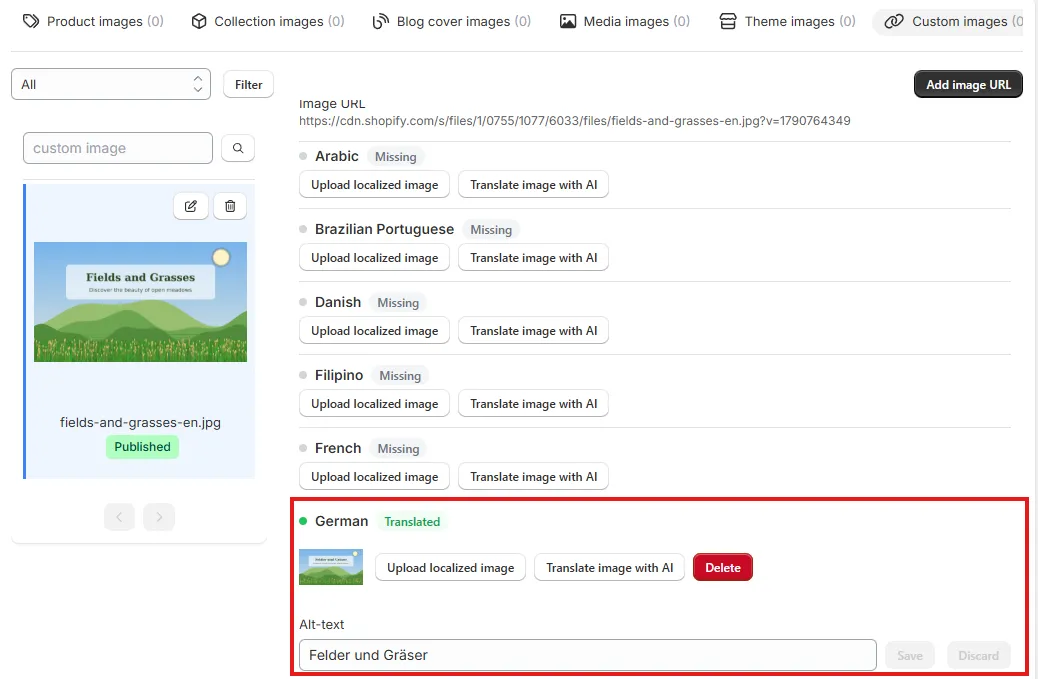
Once added, the image appears in the Custom images list on the left, with every store language listed as Missing on the right.
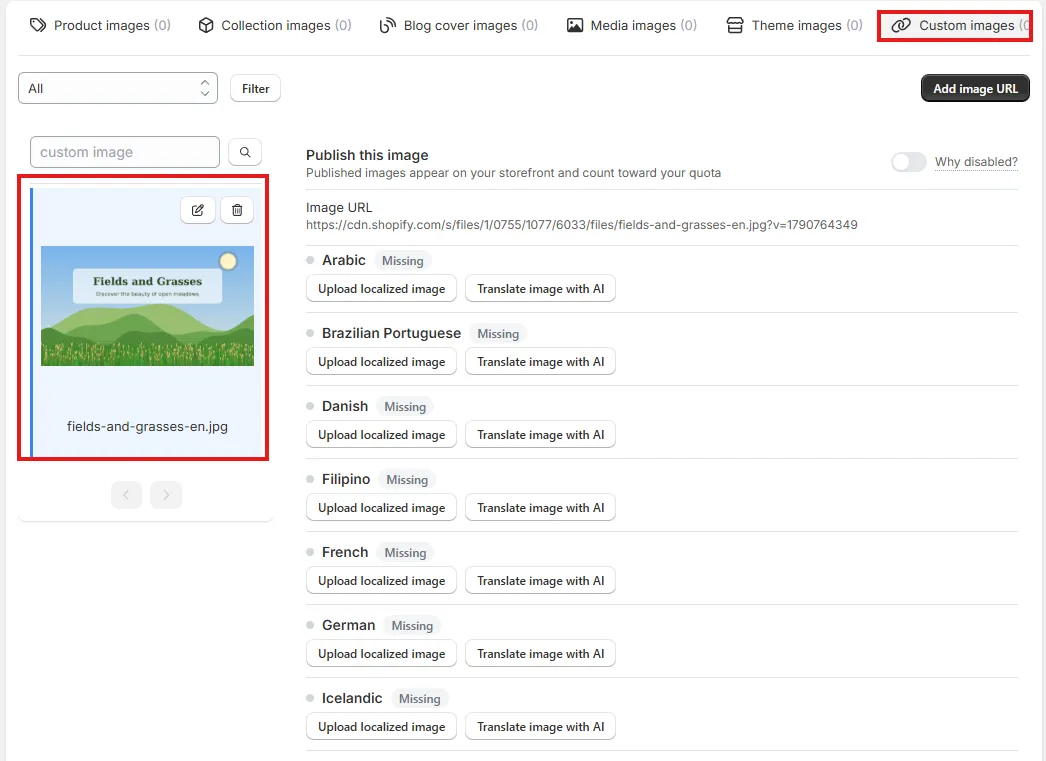
For each language, either:
- click Upload localized image to add your own translated version, or
- click Translate image with AI to have the app generate one for you. See our AI Image Translation Tutorial to learn more.
Note: Uploaded images must be in PNG, JPG, or WEBP format.
Once saved, the language shows as Translated. You can also add Alt-text for the translated image and click Save.
After saving your translation, make sure Publish this image (at the top of the entry, above the Image URL) is turned on. The translated image only appears on your storefront when the entry is published, and it then shows as Published in the list. Published images count toward the Localized images limit of your plan.
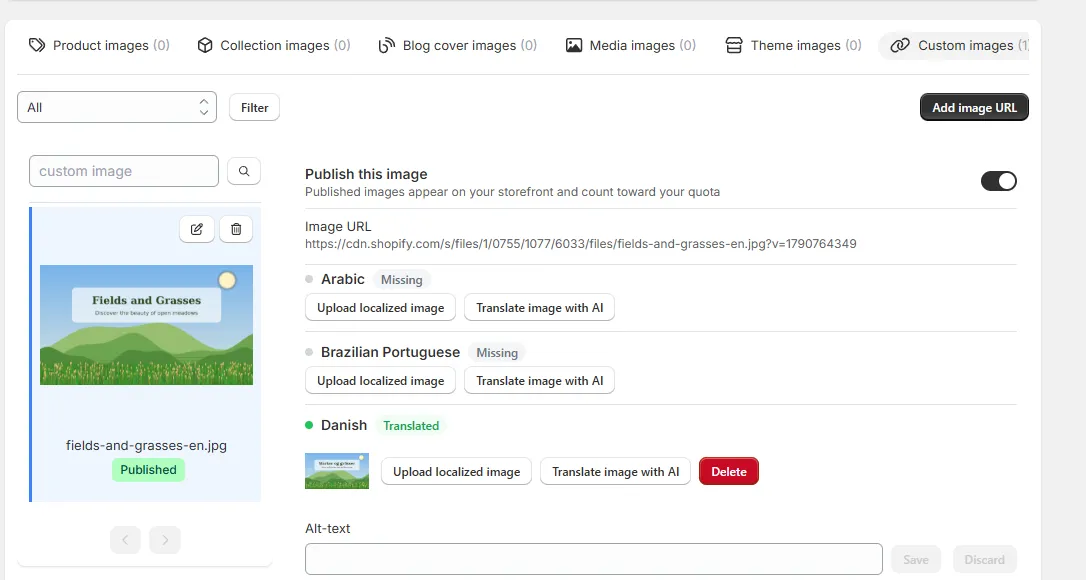
To hide the translated image from your storefront without deleting it, turn Publish this image off. Turn it back on at any time to show it again.
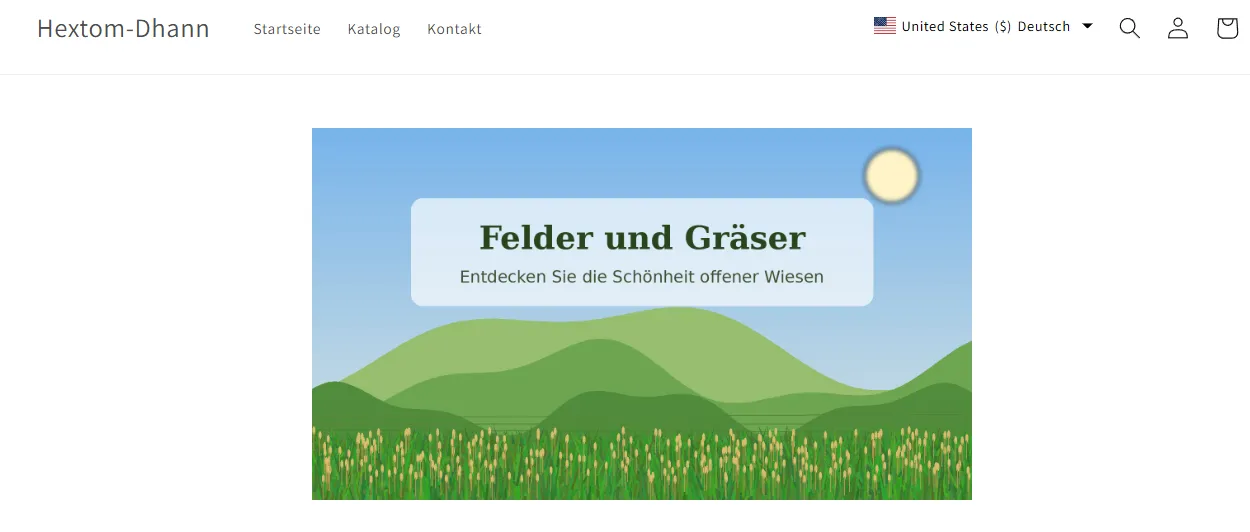
Here’s how the image looks when customers view the store in German:
Managing custom images
Each entry in the list has two buttons in its top-right corner:
- Edit (pencil icon) to change the entry’s name or its image URL.
- Delete (trash icon) to remove the entry and its translations.
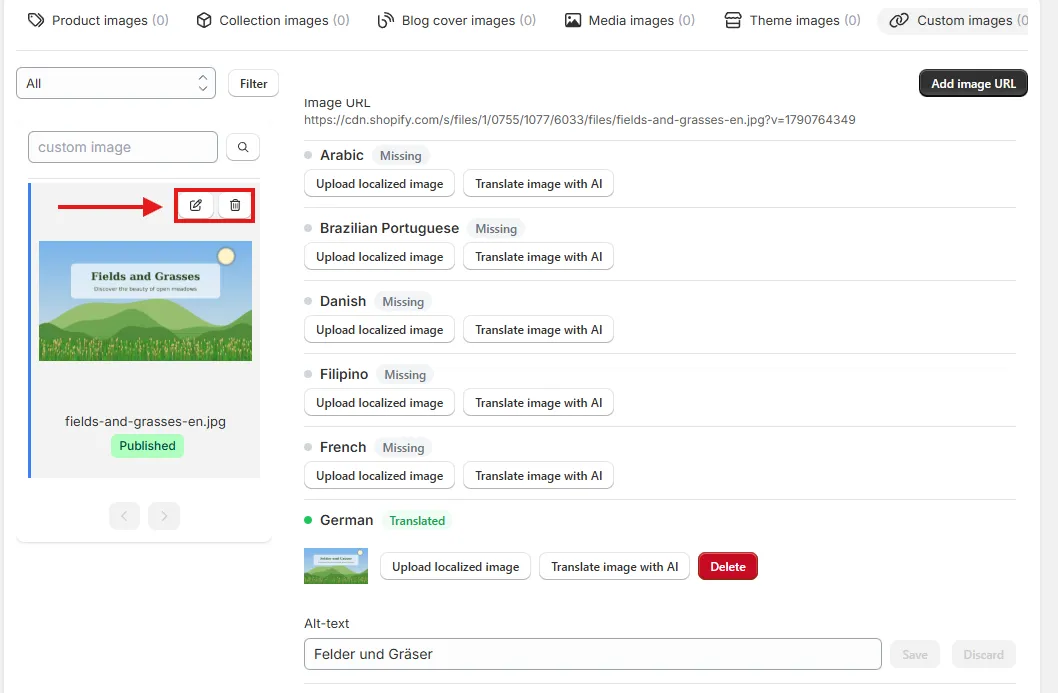
Clicking Edit opens the Edit custom image URL popup, where you can update the Image URL or Name and click Save changes. If you change the URL, the translated images you already uploaded are kept and will be shown for the new address.
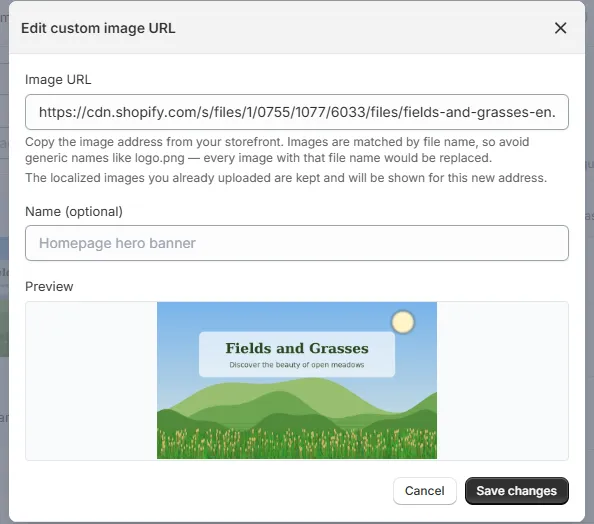
To remove the translation for just one language, click the Delete button in that language’s row instead.
You can also use the search box and the status filter above the list to find a custom image quickly.
Things to keep in mind
Images that already belong to another tab
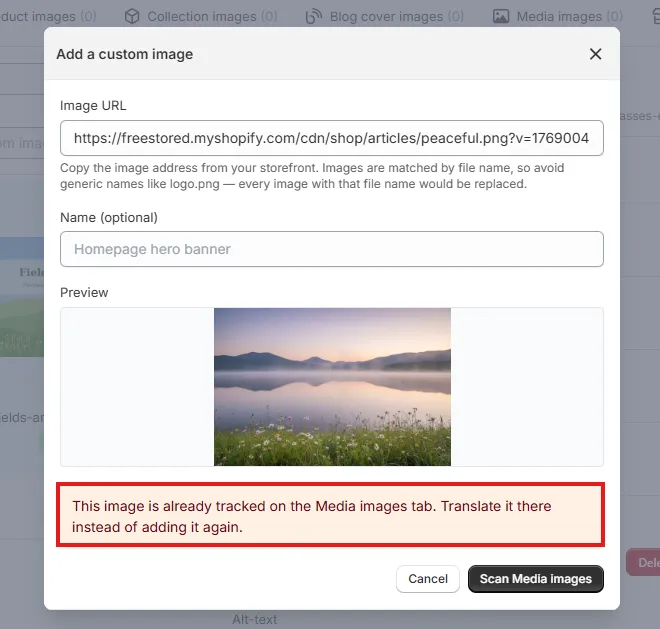
If the URL you paste belongs to an image the app can already find in another tab, the popup tells you which tab and gives you a button to go there. For example, the message below shows the image is already tracked on the Media images tab. Click the button (here, Scan Media images) to go there and translate it instead.
Images are matched by file name
On your storefront, the app finds images to replace by their file name, not the full URL. If several images share the same file name, all of them are replaced with the translation.
This also means you don’t need to edit the URL you copy. Extra parts at the end, like ?v=1790764349, are fine to leave in.
Avoid generic file names like logo.png or banner.jpg. If your image has a generic name, upload a copy with a unique name to Shopify Admin > Content > Files, use that copy in your page builder or app, then add its URL here. Learn more in Why is the wrong image being changed by the Image translation tool?
AI translation needs a public URL
To translate an image with AI, the image URL must be publicly reachable. Images on private or internal addresses (for example, behind a login or on a local network) can’t be translated with AI, but you can still upload your own translated version with Upload localized image.
Translated image not showing?
- Make sure the Translator Core Snippet is enabled in your theme. The app uses it to replace images on your storefront. See Enable the Translator Core Snippet.
- Check that Publish this image is turned on for the entry.
- If it still doesn’t appear, see Why is the image I translated not appearing on my store?
If you need assistance, please email us at help@hextom.com and we’d be happy to help!