
Image Translation
Image Localization Tutorial
You can translate your store images using the Hextom AI Translate & Currency app. This feature supports product images, collection images, blog cover images, and other online store images.
How to Translate Images
- In the app sidebar, go to Translation and select Translate images.
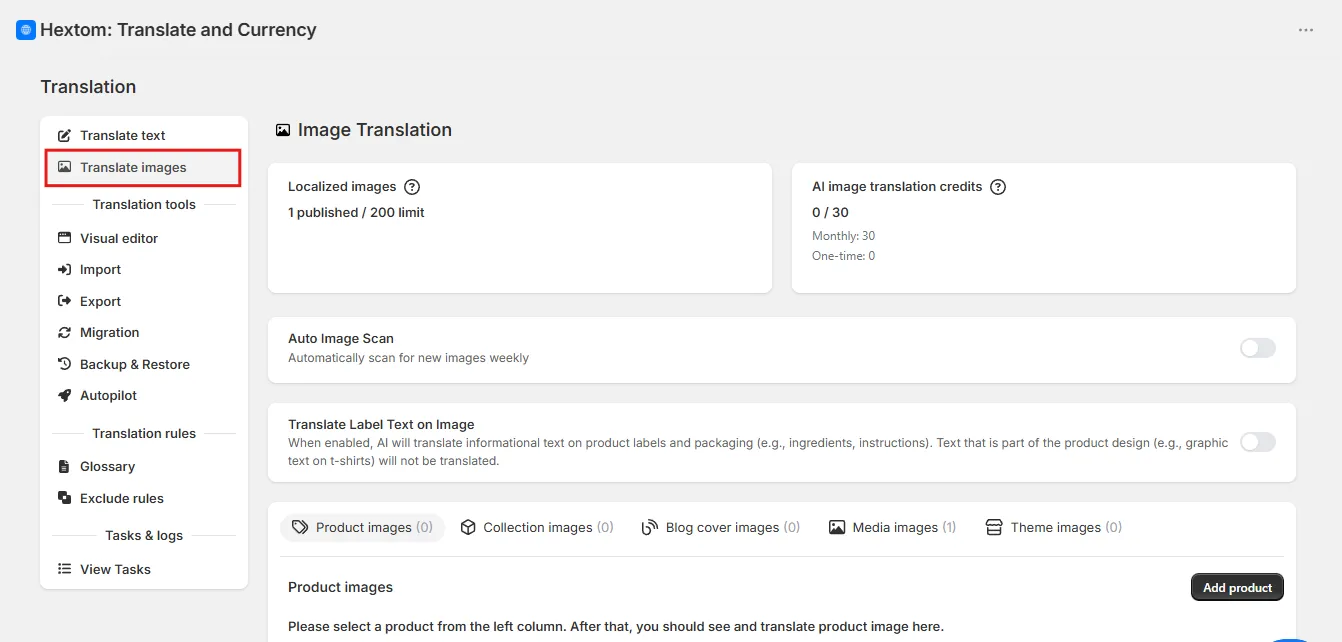
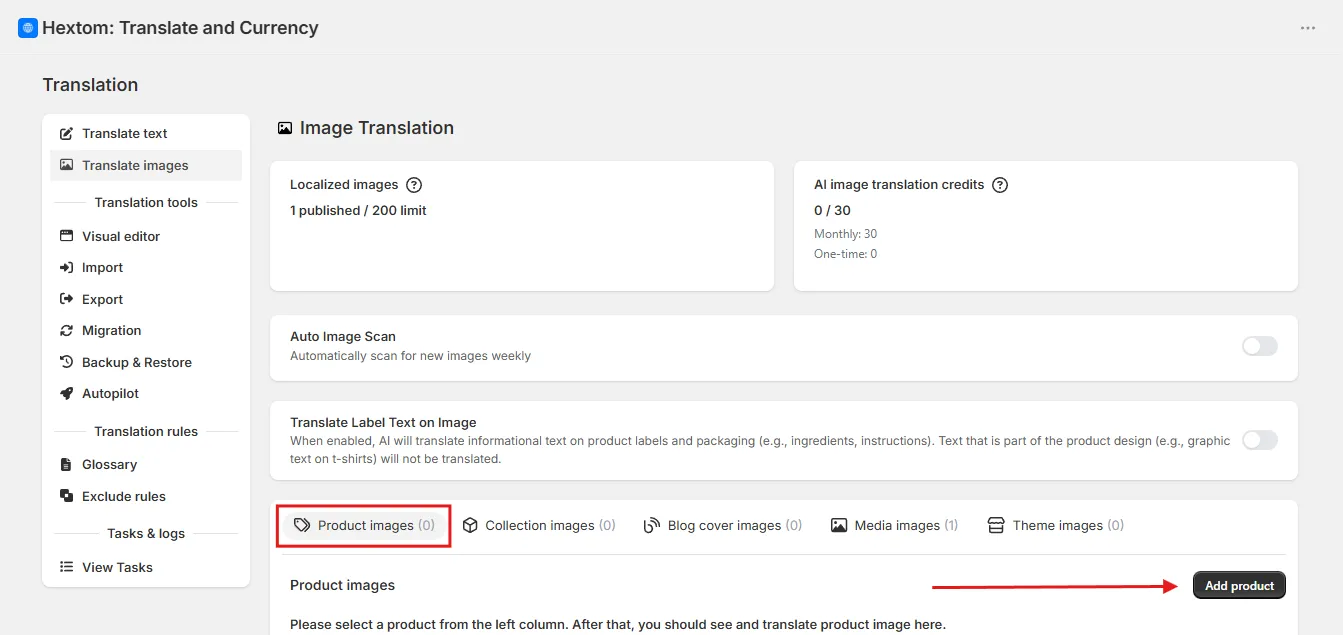
- Choose the type of images you want to translate: Product images, Collection images, Blog cover images, Media images, or Theme images.
As an example, let’s translate a Product Image by clicking the Add product button.
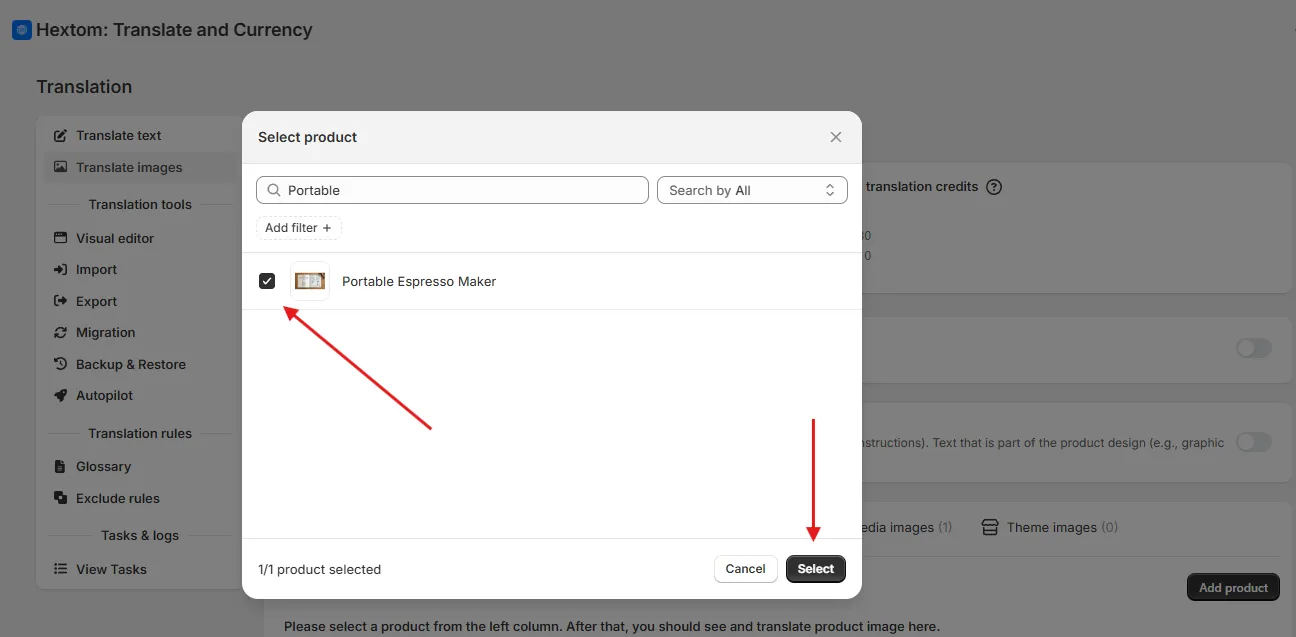
- In the popup, select the product with images you want to translate from the list.
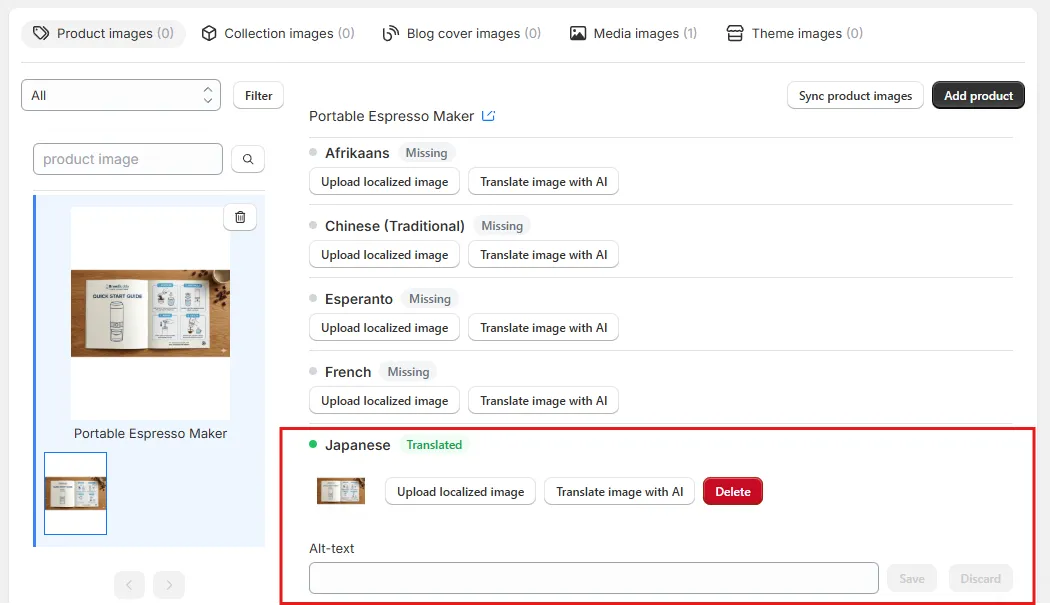
- Select a language and click Upload localized image to add your translated version of the image. Alternatively, click Translate image with AI to have the app generate a translated image for you automatically — see our AI Image Translation Tutorial guide to learn more about that option.
Note: Uploaded images must be in PNG, JPG, or WEBP format. There is no file size limit.
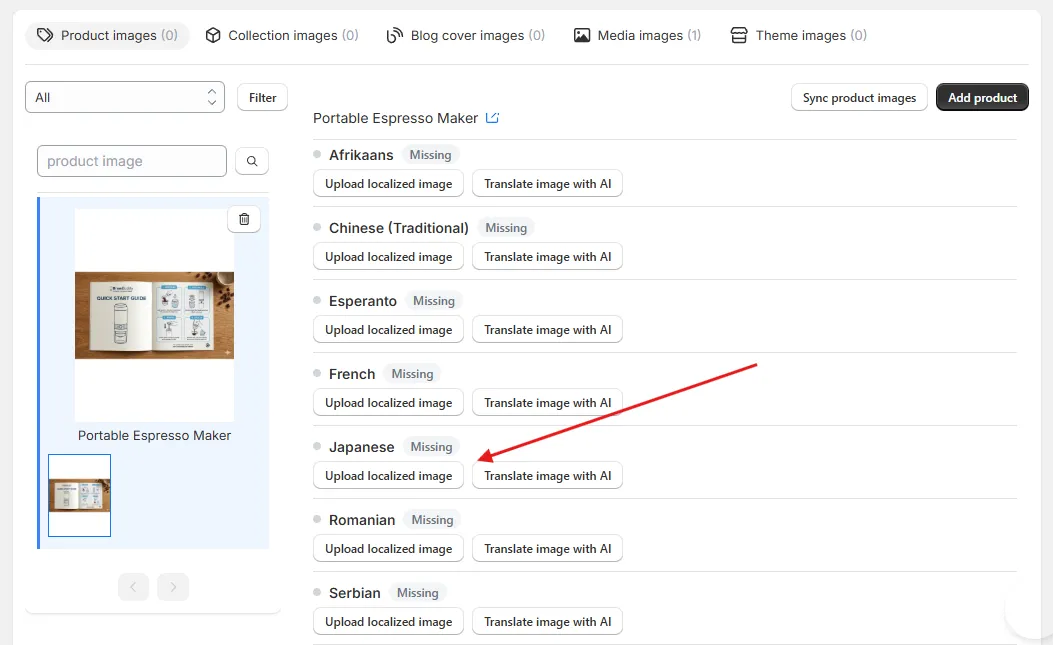
- In this example, I’ve uploaded a translation for this image in Japanese. Once uploaded, the language shows as Translated, and you can add and save alt text for the image.
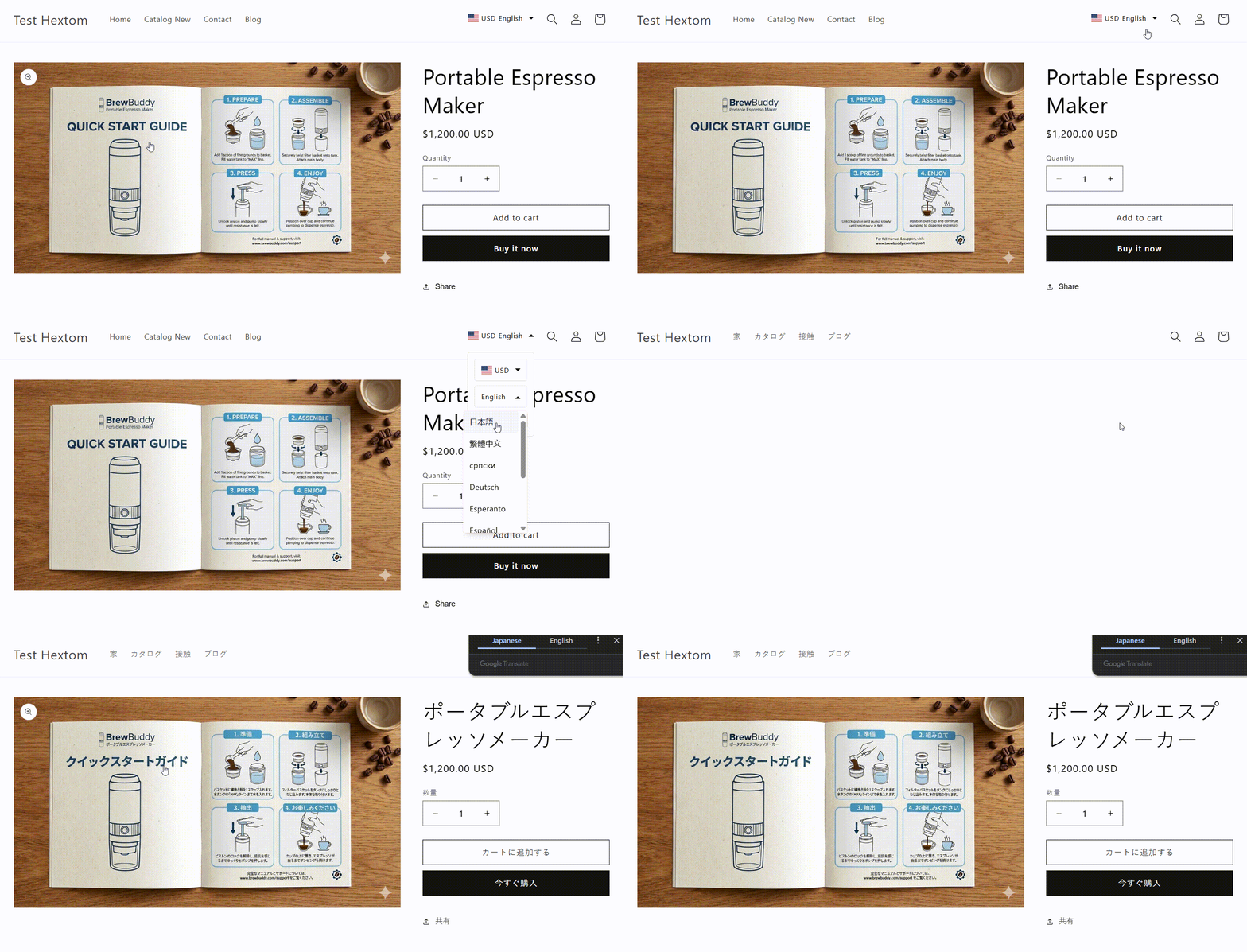
Here’s how the translated product image display when using Japanese:
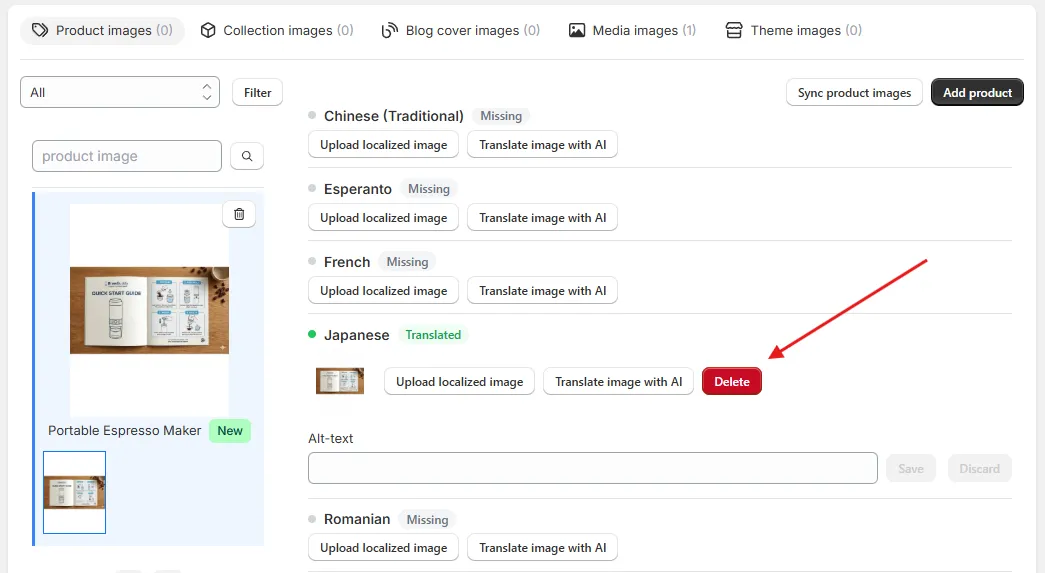
Note:
To remove a translated image, click the Delete button below it. This will remove the translated image from your store.
Auto Image Scan
You can set the app to auto scan your images periodically by enabling the Auto Image Scan toggle. This function will set the app to scan your store weekly for new images.
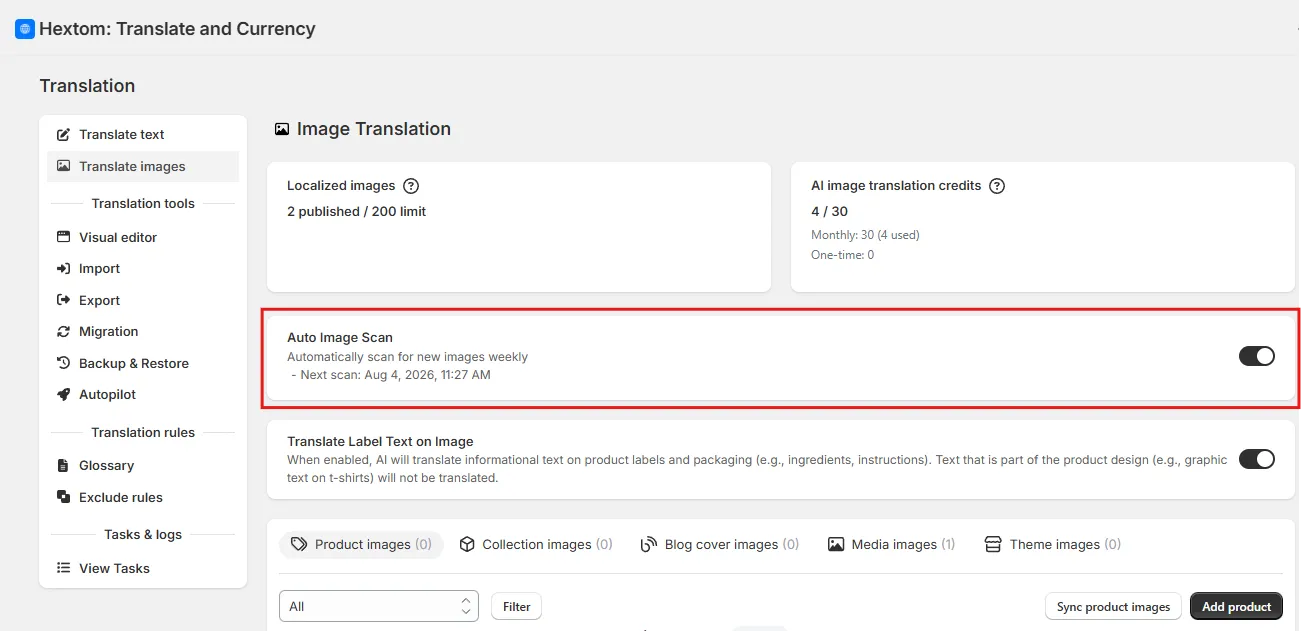
Once a scan has been run, you will be able to see the scan history, as well as the date of the last scan, and the scheduled date for the next scan.
Please note that the Auto Image Scan feature is only available with a Pro plan or higher in the app.
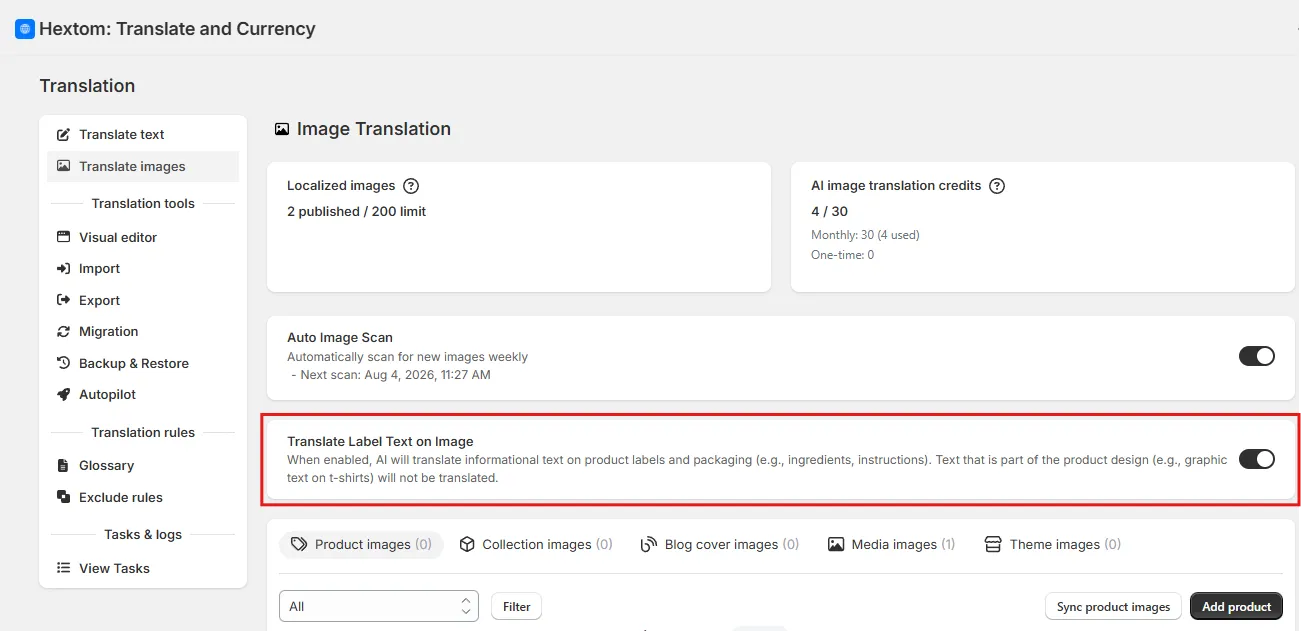
Translate Label Text on Image
You can turn on Translate Label Text on Image to have the AI translate informational text on product labels and packaging (e.g., ingredients, instructions). Text that’s part of the product’s design (e.g., graphic text on a t-shirt) will not be translated.
If you need assistance, please email us at help@hextom.com and we’d be happy to help!