
Manual Translation
How to use Manual Translation?
The Manual Translation tool can be used to make precise translations of your store’s text, or to edit your existing translation data. Manual translations are always free to create.
Translate a Single Language
- Go to the Translation page located in the sidebar, and choose the Language you want to translate.
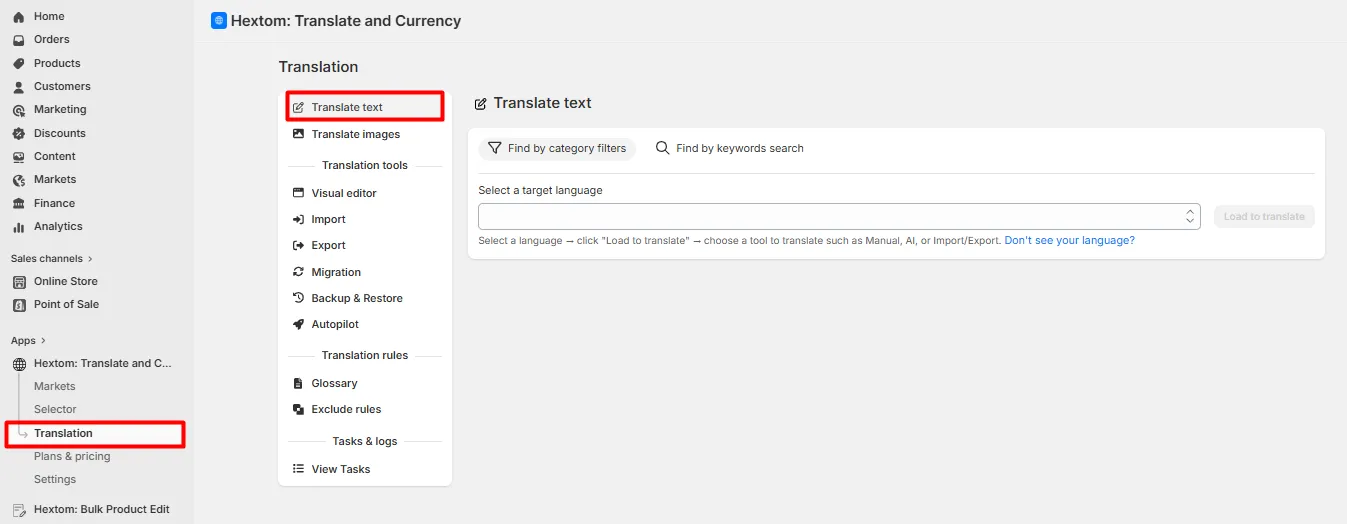
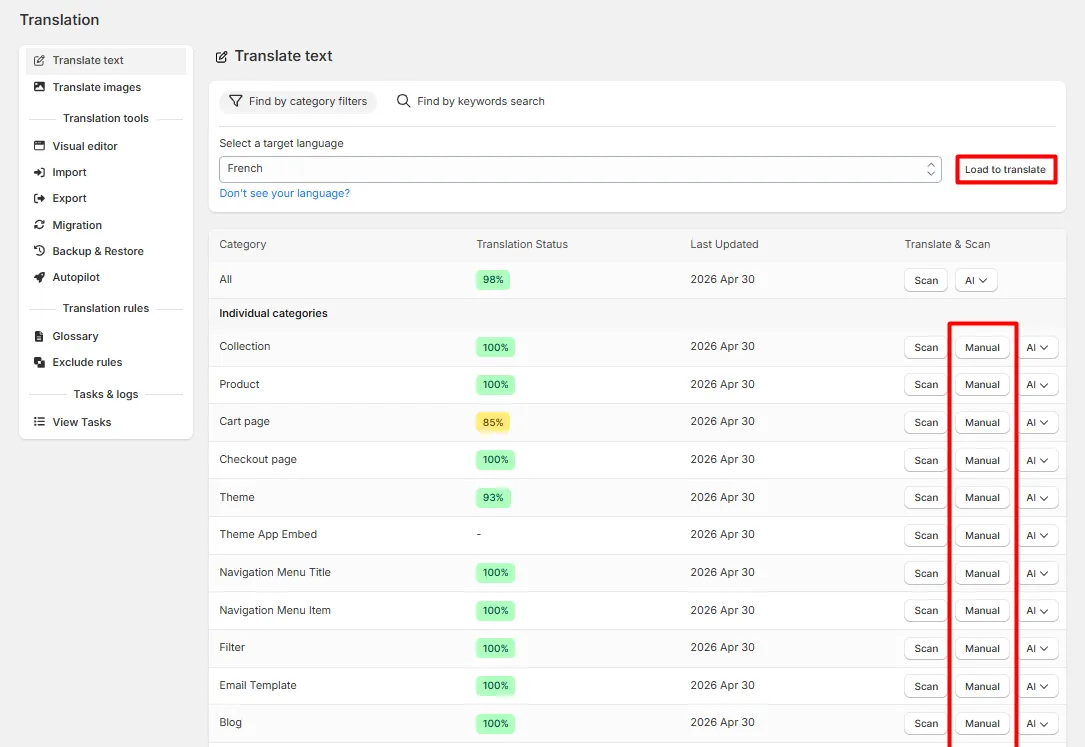
- Select the language you want to translate, then select the Manual button for the text type that you want to translate.
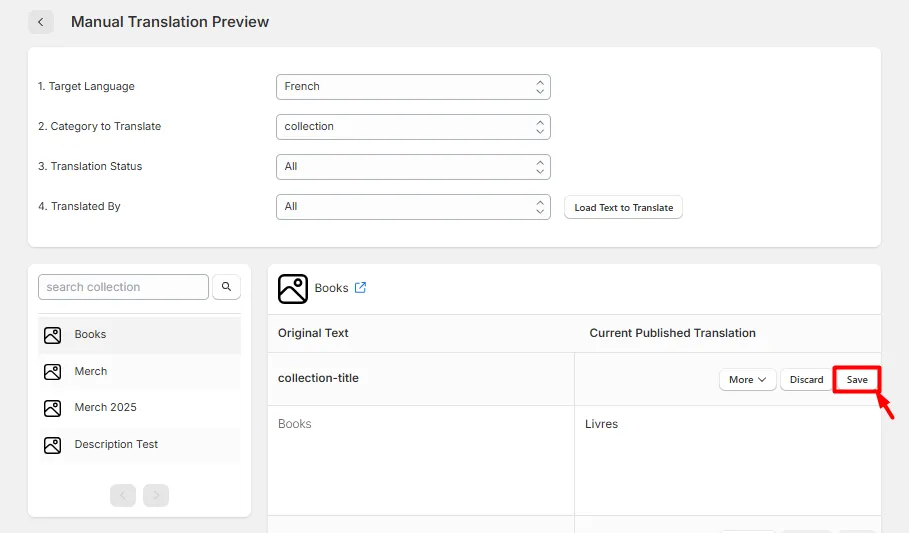
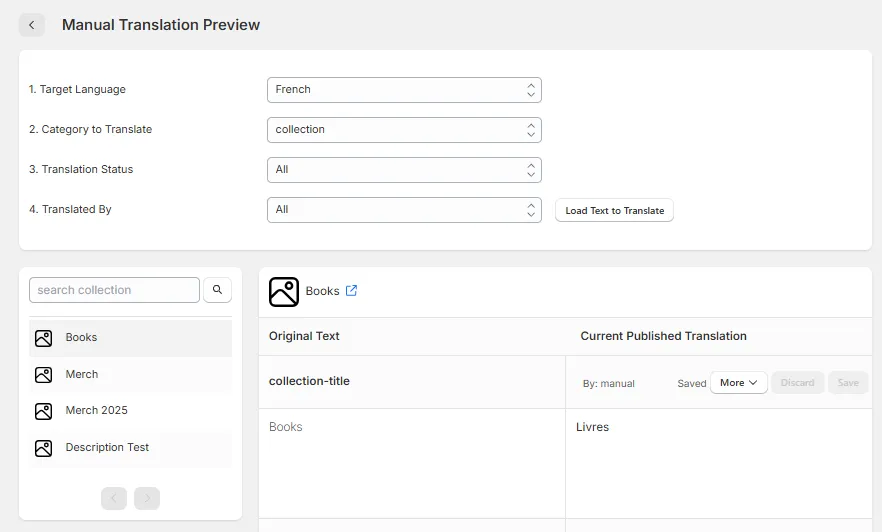
- The default language text elements will appear in a box on the left. You can manually input the translation on the right-hand box and then click the Save button to publish the translation. If there is already a translation, then it will appear in the right-hand box for editing.
Translate Multiple Languages at Once
You can now also manually translate a single item into every target language from one view in the manual translation tool — edit, save, or exclude all languages side by side. This saves you from switching between languages one at a time to update the same item.
- Click the More button > Translate for multi languages.
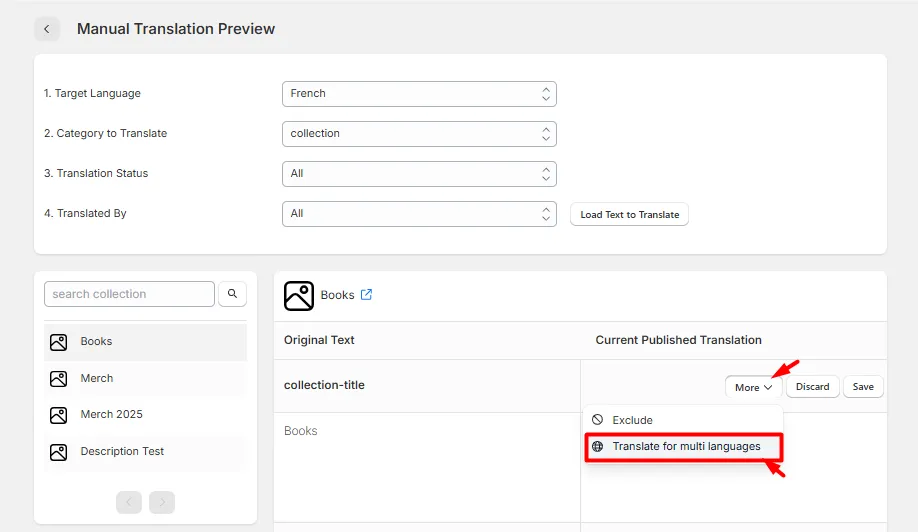
- A pop-up will appear showing the original text, and text boxes for all languages on your store. Enter your preferred translations for the same item in each language.
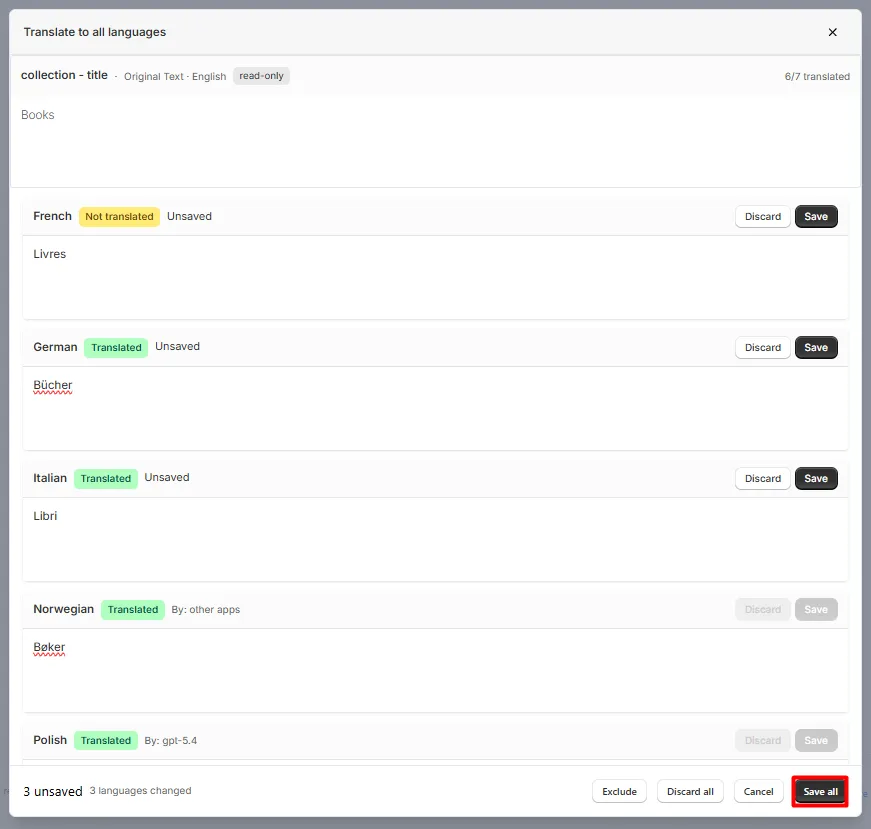
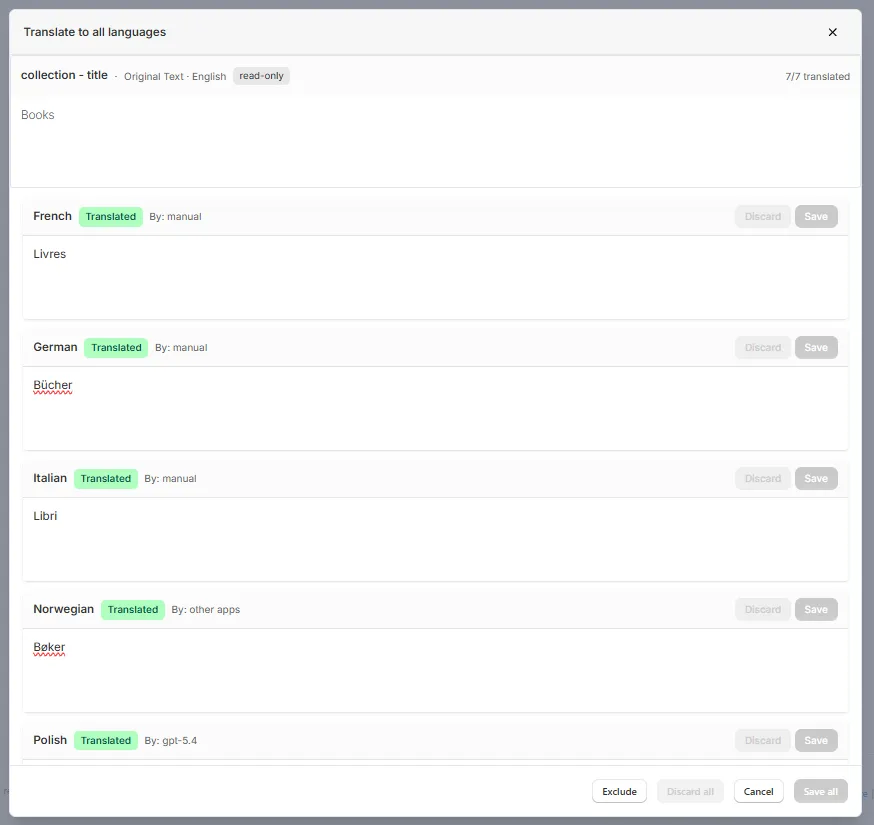
- Save translations one by one, or save all at once using the button in the bottom-right corner of the box.
Related guides:
- How to use Keyword Search to find text to translate — find and translate a specific text or keyword.
- How To Translate Product Option Values in Bulk — translate the same option value, like a color or size, across many products at once.
- How to Generate and Save an AI Translation from the Manual Translation Tool — have the app draft a translation for you instead of typing it manually.
If you have any further questions, please feel free to email us at help@hextom.com.
Was this article helpful?
Your feedback helps us improve our docs.
Thanks for the feedback!