
Getting Started
Getting Started with Currency Conversion
Currency conversion allows your customers to shop on your store in their local currency, improving your store’s reach. This guide will help you get started with our app’s currency conversion tools, so you can allow your customers to Shop your store in their local currency.
If you need help with the app’s language features, you can check out our Getting Started with Translation guide.
Before You Begin: Currency Conversion through Shopify Markets
If your store uses Shopify Payments, and Shopify Markets, then instead of using our app’s currency conversion, you should set up your currencies in your Shopify Markets settings whenever possible. We have a full guide on how you can set this up available here: How to setup Shopify Markets with Translate My Store (TMS, Shopify market enabled) – Hextom
For regions that do not have Shopify Payments available, or if your store does not use Shopify Payments, then you can continue to follow this guide to set up the currency conversion through our app.
It is possible to have some regions currencies converted through Shopify Markets + Shopify Payments, and for others to be converted through our app. Our app will let you know if the currency is managed through our app, or through Shopify markets on the app dashboard Regions & Currencies, as shown below.
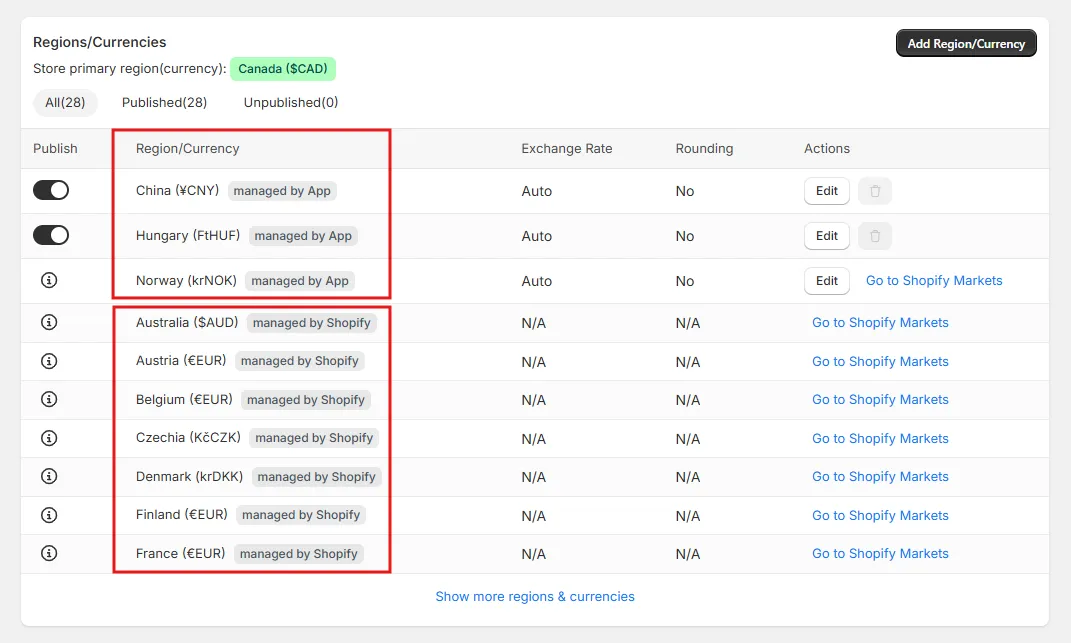
If all the currencies are managed by Shopify then you don’t need to take any further action, and you can control all your currency conversion settings through your Shopify Markets settings.
To begin setting up your currencies:
Our app’s currency conversion requires some initial setup steps, as shown in the market’s tab at the top of the Regions/Currencies page in our app.
Step 1: Initial setup
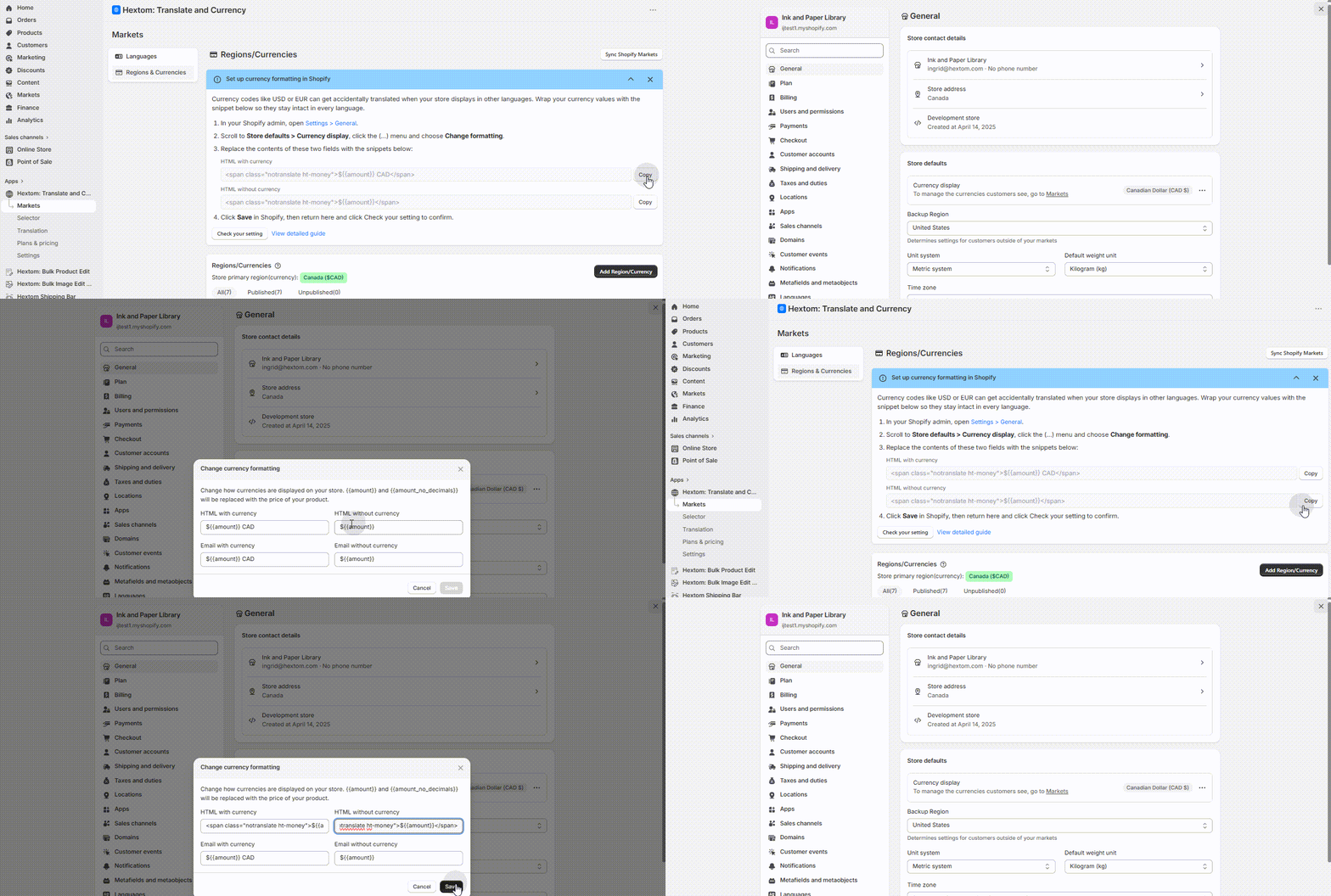
You will need to use the provided code to replace the currency formatting settings found in your Shopify Admin. You can do this by:
- Press the Copy button beside the values shown in step 3 in our app.
- In step 1, click the blue hyperlink text Settings > General.
- Press the three dots button in the currency display section of the settings page that appears, then select the Change currency formatting option.
- Paste the copied value into the field that appears.
- Save the changes.
Step 2: Add a new region/currency
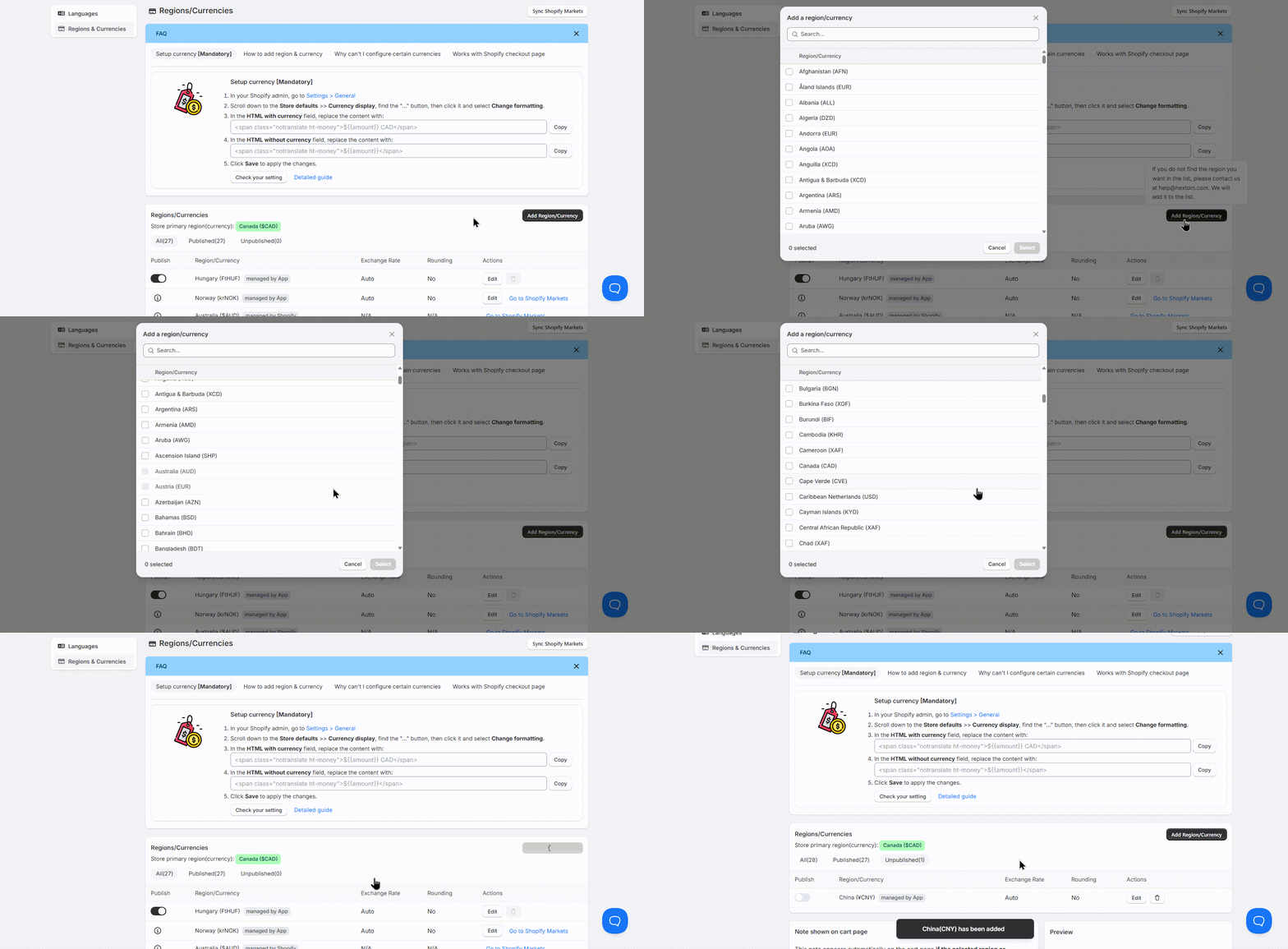
To add a new region or currency to your store, click the Add Region/Currency button. Then choose the currency you want to add from the list. After selecting it, publish the new region or currency to make it visible on your store.
Step 3: Enable the app in your theme
For currency conversion to work on your storefront, the app must also be enabled in your Shopify theme. See our Enable the App from Shopify theme customization guide to make sure this is turned on.
Optional: Customize Your Currency Settings
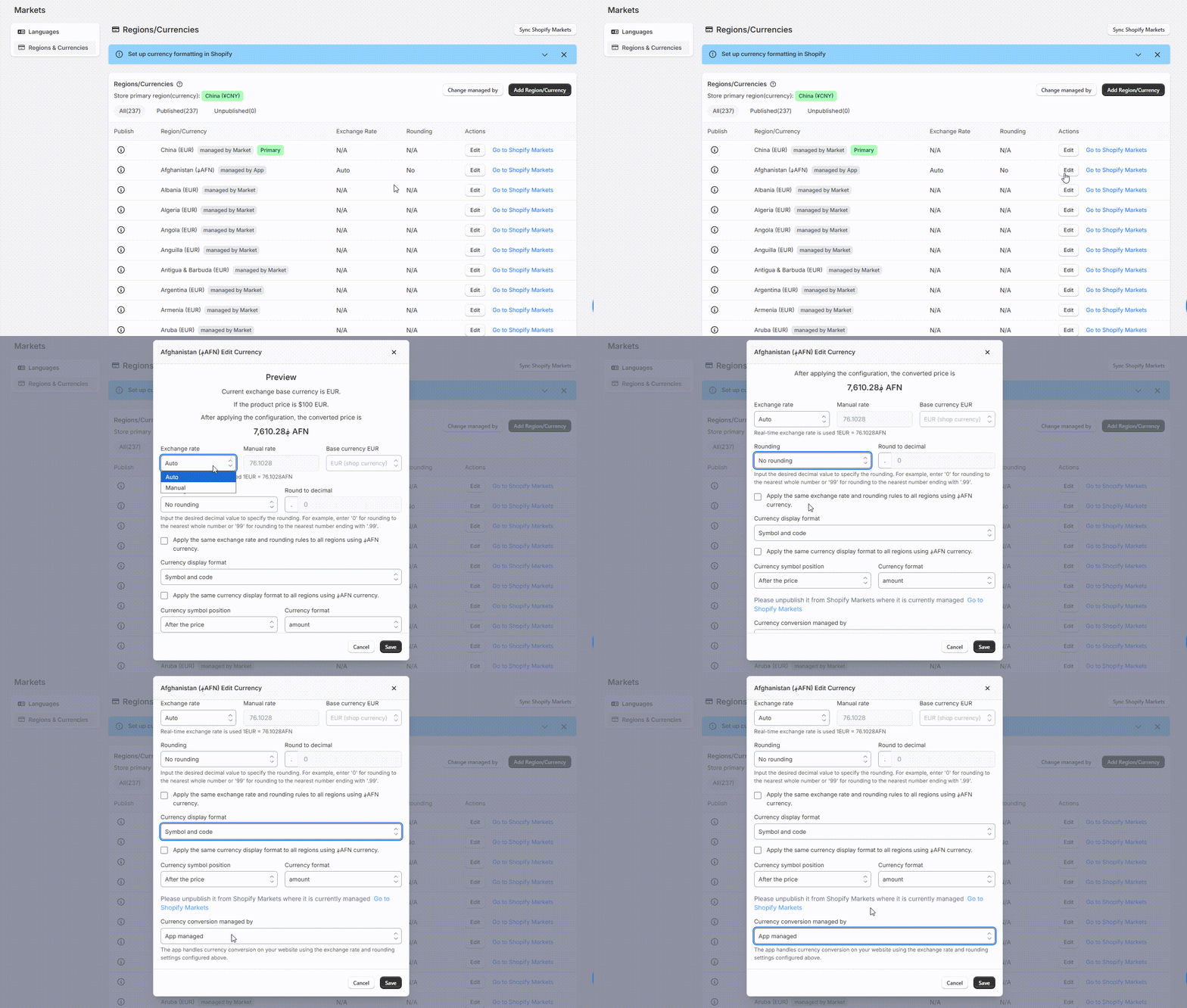
You can update your currency conversion settings by selecting the Edit option in our app. This allows you to change:
- The currency conversion rate
- Price rounding options
- Currency display format
- Whether the currency is managed by our app or by Shopify Markets
You can always reach out to us at help@hextom.com if you have any questions for us!