Features
Effects: Adding Frames and Motion to Your Bar
The Effects feature in Quick Announcement Bar lets you dress up your bar with decorative Frames and animated Motion backgrounds. This is a quick way to make a bar feel seasonal, festive, or simply more eye-catching.
Note: Frames and Motion effects are available on the Premium Plan only.
Frames
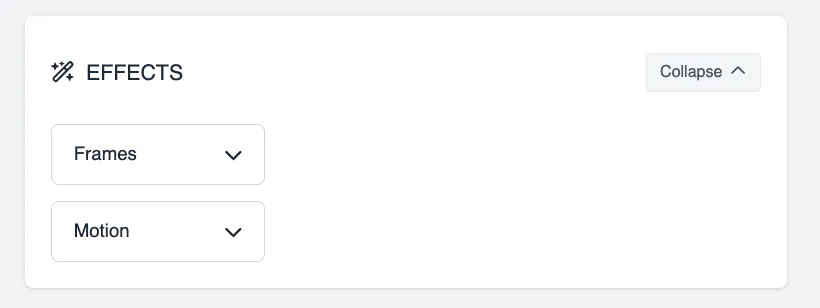
Frames add decorative artwork or a border around the edges of your bar. Scroll down to the Effects section in the app, then click the Frames dropdown to open the gallery, and click any option to apply it.
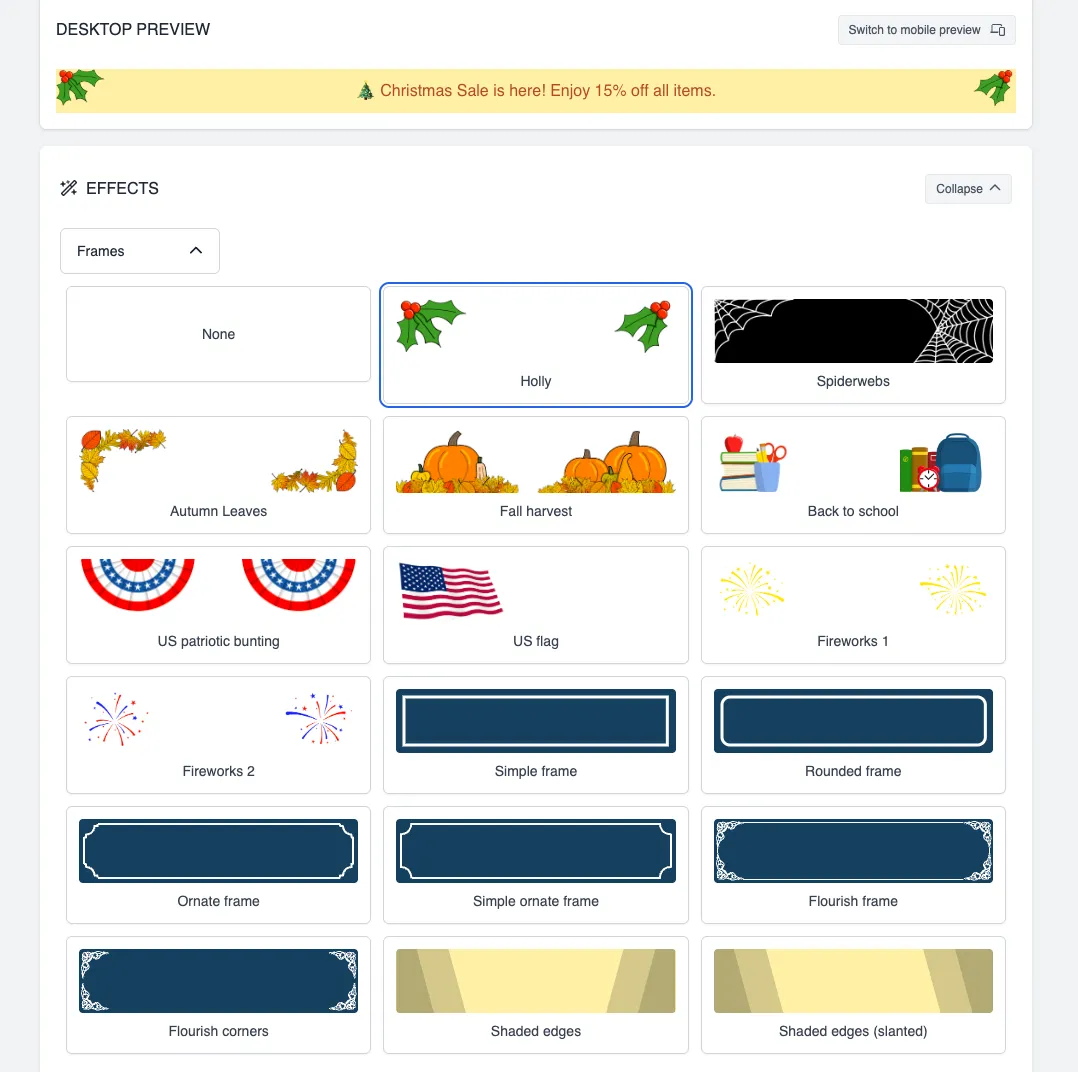
Frames fall into a few groups:
- None — removes any applied frame.
- Seasonal and holiday art — Holly, Spiderwebs, Autumn Leaves, Fall harvest, Back to school, US patriotic bunting, US flag, Fireworks 1, and Fireworks 2. These place small illustrations at the corners or edges of the bar to match a holiday or event.
- Border frames — Simple frame, Rounded frame, Ornate frame, Simple ornate frame, Flourish frame, and Flourish corners. These draw a decorative outline around the entire bar instead of adding corner artwork.
- Shaded edges — Shaded edges and Shaded edges (slanted) add a subtle darker gradient along the sides of the bar for depth.
Note: Only one Frame can be active at a time — choosing a new one replaces whatever was selected before.
Motion
Motion applies an animated background to your bar, like drifting snow, falling leaves, or fireworks. Click the Motion dropdown to open the gallery and select an effect to preview it live.
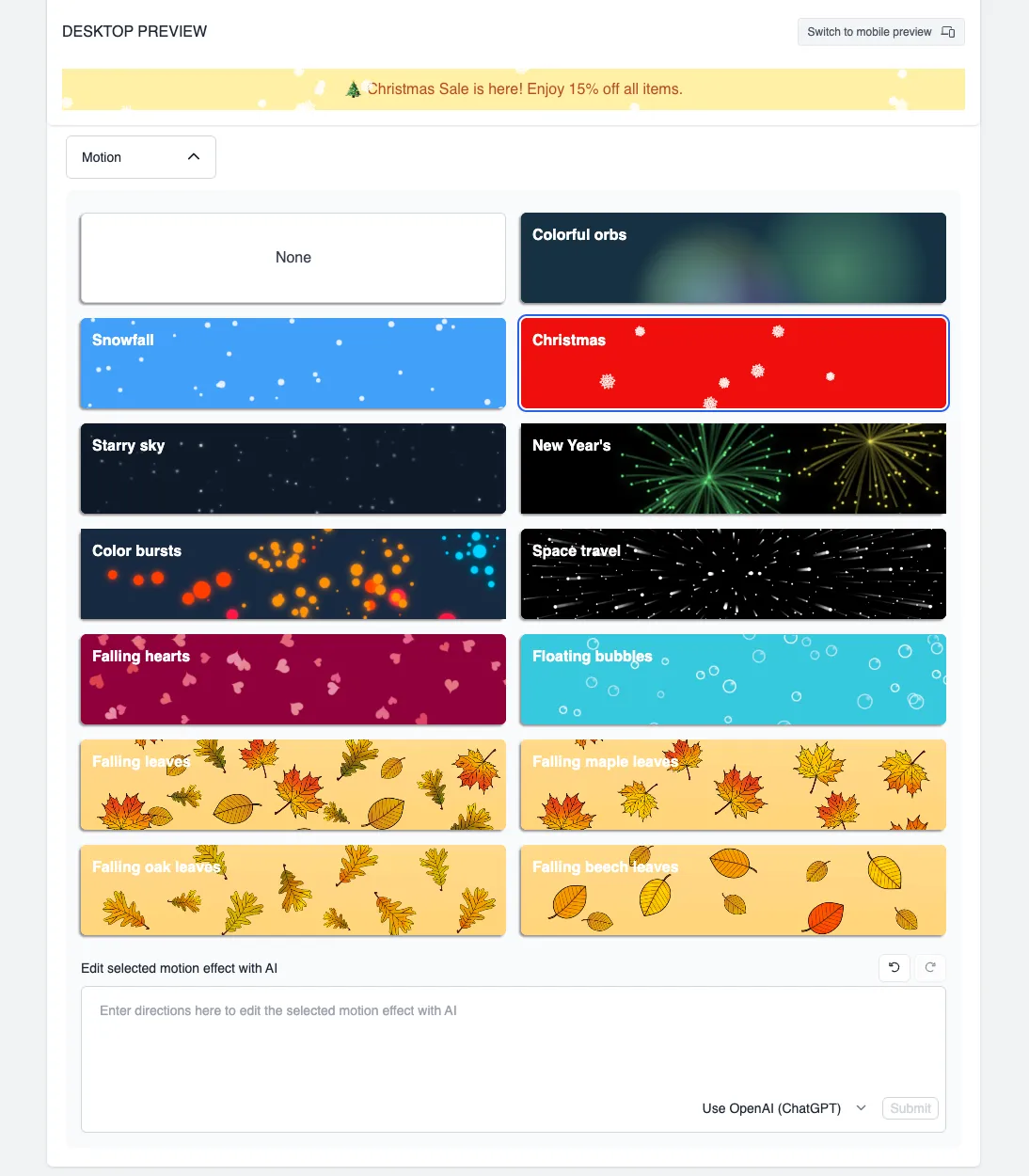
Available Motion effects include:
- None — turns off Motion and returns to your bar’s regular background.
- Ambient — Colorful orbs, Starry sky, Space travel, Floating bubbles
- Seasonal — Snowfall, Christmas, New Year’s, Falling leaves, Falling maple leaves, Falling oak leaves, Falling beech leaves
- Celebratory — Color bursts, Falling hearts
Each Motion effect comes with its own background color, so selecting one will replace your bar’s current background.
Note: Frames and Motion can be combined — for example, pairing the Holly frame with the Christmas motion effect for a festive look.
Editing a Motion Effect with AI
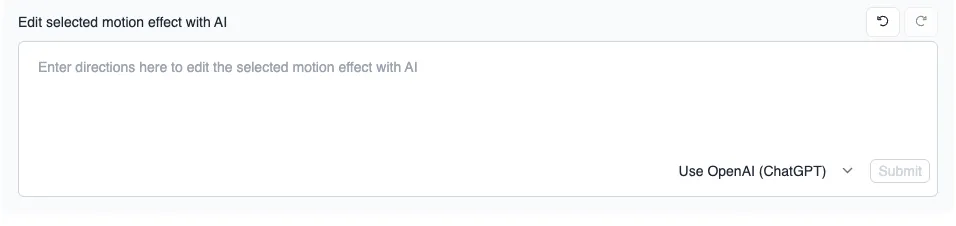
Once a Motion effect is selected, you can fine-tune it using the Edit selected motion effect with AI field below the gallery:
- Select a Motion effect from the gallery above.
- Describe the change you want in the text field — for example, “make the snowflakes bigger” or “slow down the animation”.
- Choose an AI model from the dropdown: OpenAI (ChatGPT) or Anthropic (Claude).
- Click Submit to apply the change.
- Use the undo and redo arrows above the field if a result isn’t what you expected.
If you have any further questions or concerns, please let us know at help@hextom.com. We’re also open to suggestions — if you have an idea for a new Frame or Motion effect, let us know and we’ll check if it’s something we can add.